Welcome to WorldKonstruct
You know this feeling. You're 40,000 words into your novel when a character reappears—and you can't remember if her eyes are green or grey. You scroll back through chapters, search your notes app, check a spreadsheet you started in March, flip through a notebook you abandoned in May. Twenty minutes later you've found the answer, but you've lost the scene you were writing.
Or maybe you haven't started writing yet. You have a world in your head—vivid, complex, alive—but every time you sit down to capture it, you end up building more world instead of writing story. The magic system needs rules. The faction politics need mapping. The timeline needs fixing. Three months later you have a gorgeous wiki and zero manuscript pages.
WorldKonstruct exists to solve both of these problems.
It's a Story Bible that lives inside Google Docs—right next to your manuscript, where you actually write. Every character, location, object, faction, worldbuilding rule, and plot event is one click away. Type @Maya in any entry and it links automatically. Rename a character and every reference updates. Scan your manuscript and the AI finds the characters you forgot to track.
priority_high What WorldKonstruct Will Not Do
WorldKonstruct is not a worldbuilding playground. It is not designed to let you spend months perfecting your world instead of writing your story. Every feature—from one-click AI generation to parallel document scanning—is built to get your bible done fast so you can get back to writing. If you find yourself spending more time in the sidebar than in your manuscript, you're using it wrong. Build the bible, reference the bible, write the book.
auto_awesome Why Story Bibles Matter
Before J.R.R. Tolkien wrote a single line of The Lord of the Rings, he spent twelve years building the mythology of Middle-earth. He created entire languages, drew detailed maps, and wrote thousands of pages of history that would never appear in his novels. J.K. Rowling filled notebooks with seven years of planning before Harry Potter set foot in Hogwarts. George R.R. Martin's detailed house histories enabled the intricate political plots of A Song of Ice and Fire. Brandon Sanderson's meticulously documented magic systems became the foundation for Mistborn's twisting reveals.
Your story bible isn't just organization—it's the invisible architecture that makes your world feel real.
"Worldbuilding is the skeleton on which your story hangs. Readers may never see the bones, but they'll feel it when the skeleton is missing." — Brandon Sanderson
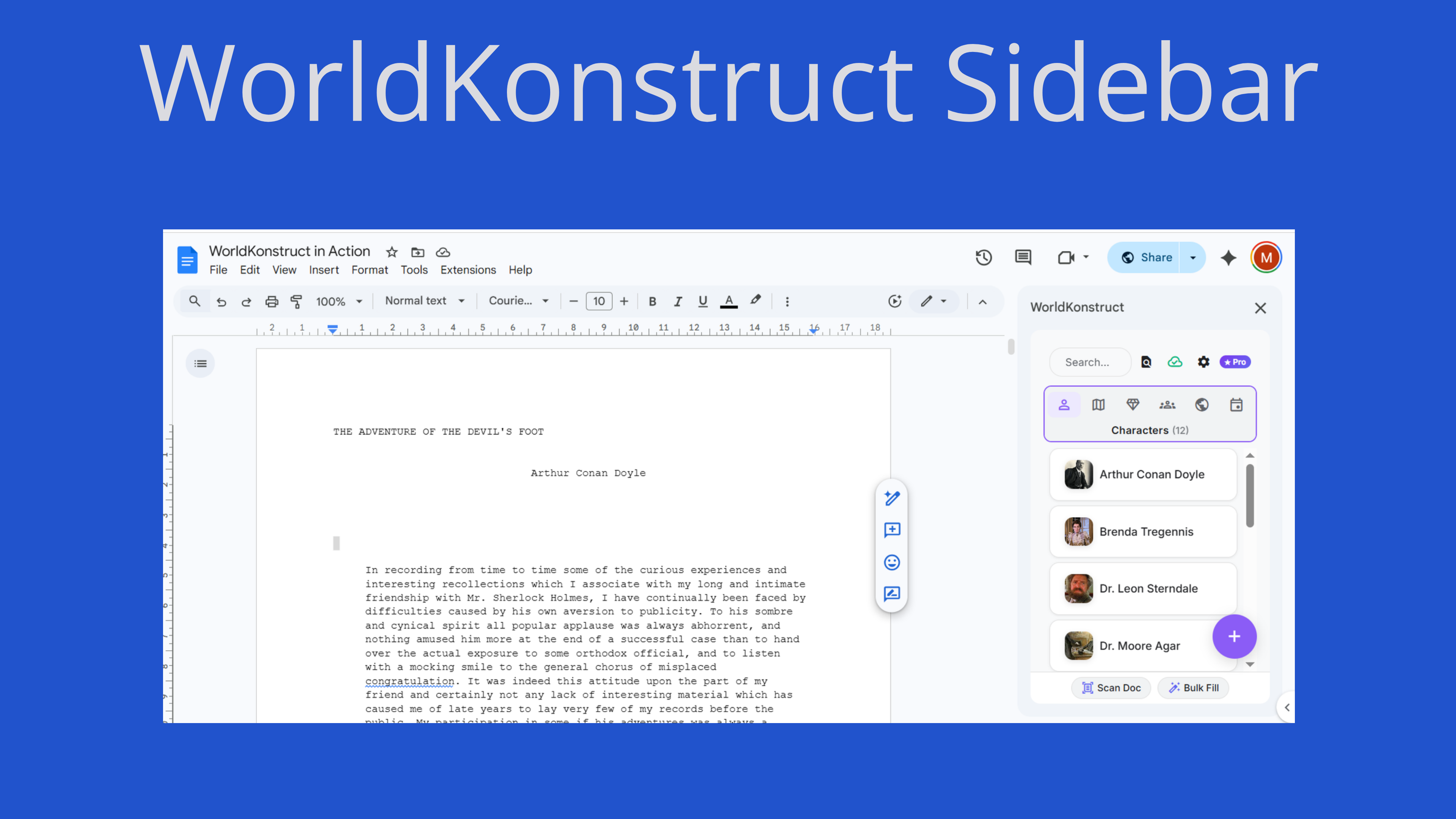
Your entire world, one click away while you write.
Who Is WorldKonstruct For?
- Novelists — solo authors managing complex worlds across drafts
- Series authors — multi-book consistency tracking with a shared bible
- Screenwriters & game designers — shared universe builders who need linked lore
- Worldbuilders & hobbyists — anyone who loves building fictional worlds
- Collaborative teams — co-authors sharing a single source of truth via Google Sheets
lightbulb Two Ways to Work
Writer mode: Use the sidebar as your reference cockpit while you write. See your characters, locations, and events glanceable in a panel right next to your words. Click any entry to pull up details without leaving your draft.
Architect mode: Open your bible in Google Sheets for big-picture work — adding a dozen characters at once, find-and-replacing across your world's history, or reviewing every faction entry as a sortable table. Both modes sync automatically, so changes in one always show up in the other.
Getting Started
Installation
Open Any Google Document
Navigate to docs.google.com and open the document you want to attach a story bible to—either your manuscript or a blank doc.
Install the Add-on
Go to Extensions → Add-ons → Get add-ons. Search for "WorldKonstruct" and click Install. Grant the requested permissions when prompted.
Open WorldKonstruct
Go to Extensions → WorldKonstruct → Open Sidebar. The sidebar appears on the right side of your document. You'll see a brief loading animation, then the pathway selection screen.
lightbulb Permissions Explained
WorldKonstruct asks for permission to read your document (for scanning), create/access a Google Sheet (your bible storage), and make external API calls (for AI features). Your data is stored in your own Google Drive—we never store your content on our servers. See Your Data & AI for full transparency.
Choose Your Path
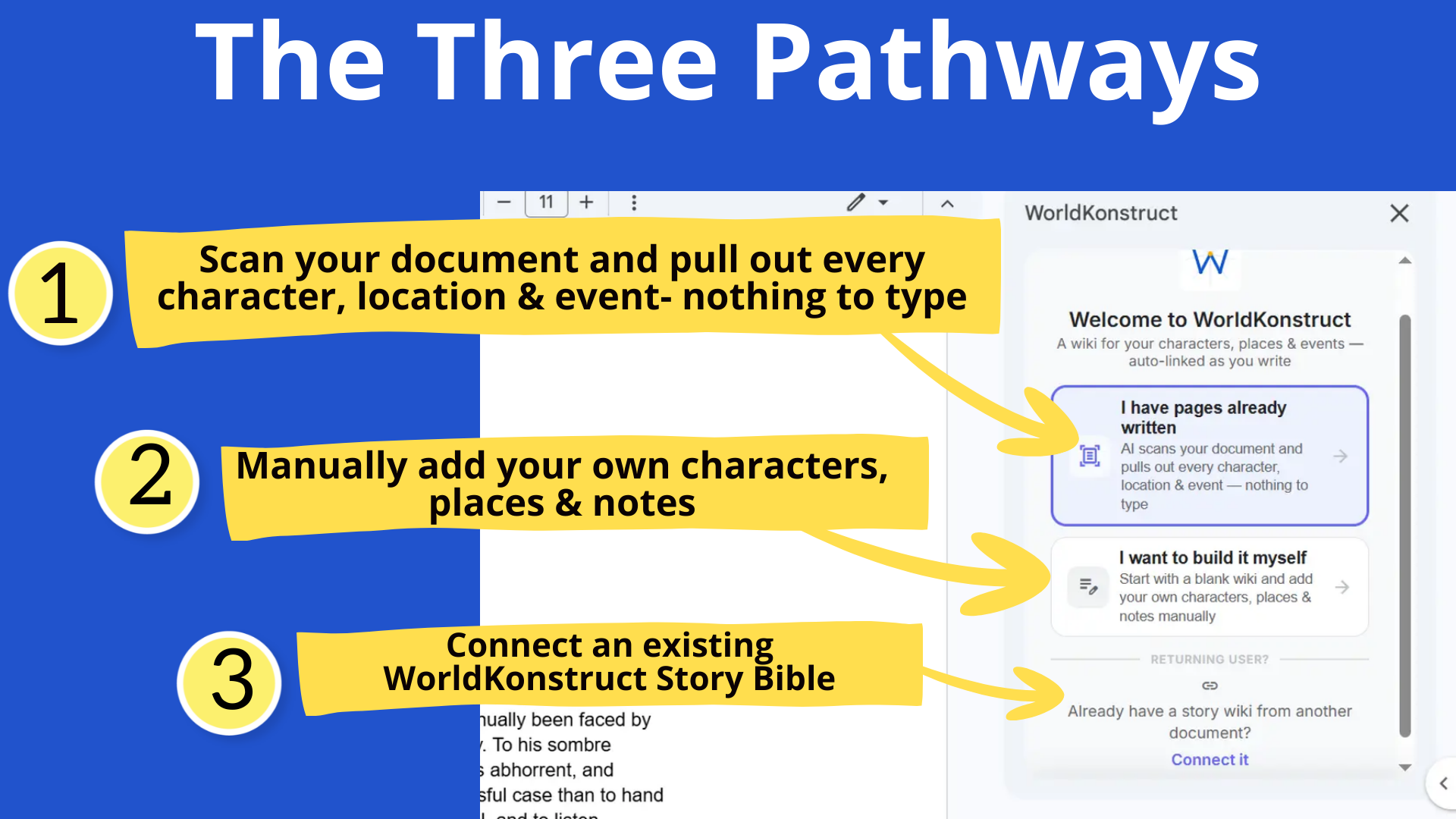
The first thing you'll see is three pathway cards. Each one sets up your story bible differently depending on where you are in your writing process. There's no wrong choice—you can always add entries manually, run scans, or link a different bible later.
auto_awesome Architects vs. Gardeners: Which Path Is Yours?
George R.R. Martin famously divides writers into architects (who plan everything in advance) and gardeners (who discover the story as they write). WorldKonstruct supports both:
- Architects → "Start from Scratch" — build the bible first, then write
- Gardeners → "I'm Already Writing" — write first, scan later, let the bible grow organically
- Series veterans → "Connect Existing Bible" — link a bible you've already built
document_scanner I'm Already Writing
For writers with 500+ words of an existing draft or manuscript.
Creates a bible and immediately scans your manuscript with AI to extract characters, locations, and other entities. Full walkthrough →
add_circle Start from Scratch
For architects who want full manual control.
Creates an empty bible. You build every entry yourself and fill it in at your own pace. Details →
link Connect Existing Bible
For series authors or collaborators.
Links this document to a bible you've already created. A picker shows all your existing bibles—just select one. Share one bible across multiple documents. Details →
5-Minute Quick Start
Let's build a small story bible from scratch using The Hunger Games as an example. After these six steps you'll understand the core workflow.
Create Your First Character
Click the + button (bottom-right). The Quick Create panel opens. Type "Katniss Everdeen" and click Create.
Add Details
Click Katniss in the entry list. In the detail view, double-click any field card to open the Quick Edit panel. Add her role, motivation, and a short description. Changes save automatically.
Create a Connected Entry
Click + again. Switch to the map Locations tab. Create "District 12".
Link with @Mentions
Open Katniss's detail view. Double-click the Description field. Type: "A hunter from @District 12 who volunteers as tribute." When you type @, an autocomplete dropdown appears—select District 12.
See the Backlink
Navigate to District 12's detail view. Open the Links tab. Under Mentioned In, you'll see "Katniss Everdeen" listed automatically. You didn't create this link manually—WorldKonstruct computed it from the @mention.
Try AI Generation
Click +, type "Peeta Mellark", add a concept like "a baker's son chosen as tribute alongside Katniss", and click Generate with AI. Watch as the AI populates motivation, fear, voice, appearance, and backstory in seconds.
check_circle You Did It!
You now understand the core loop: create entries → add details → link with @mentions → see backlinks. Everything else in this guide builds on this foundation.
Katniss Everdeen
The Three Pathways
document_scannerI'm Already Writing — Document Scanning
Who: Writers with an existing manuscript (500+ words).
Why: You've been writing but haven't tracked your world elements systematically.
When: You want the AI to catch what you've already created so you don't have to enter it manually.
How It Works
Name Your World
Enter a world name (e.g., "The Iron Coast Saga"). This becomes the title of your bible spreadsheet.
Scan Your Manuscript
Click "Scan & Create Bible". The scan starts immediately — no confirmation step needed here. The AI analyzes your manuscript simultaneously across all entry types (characters, locations, objects, factions, worldbuilding, events) using six parallel AI calls. A loading screen with tips appears while scanning. The button shows a spinner — you can cancel at any time by clicking it again.
Review Results
A results panel shows everything found, grouped by type. You'll see a stats banner (e.g., "Found 12 untracked in 8,500 words"). Each entity has a checkbox—uncheck anything that's not a real world element (e.g., real-world cities used as metaphors).
Create Entries
Click "Create X Entries". Selected entities become entries in your bible with their context extracted from your manuscript.
lightbulb After the Initial Scan
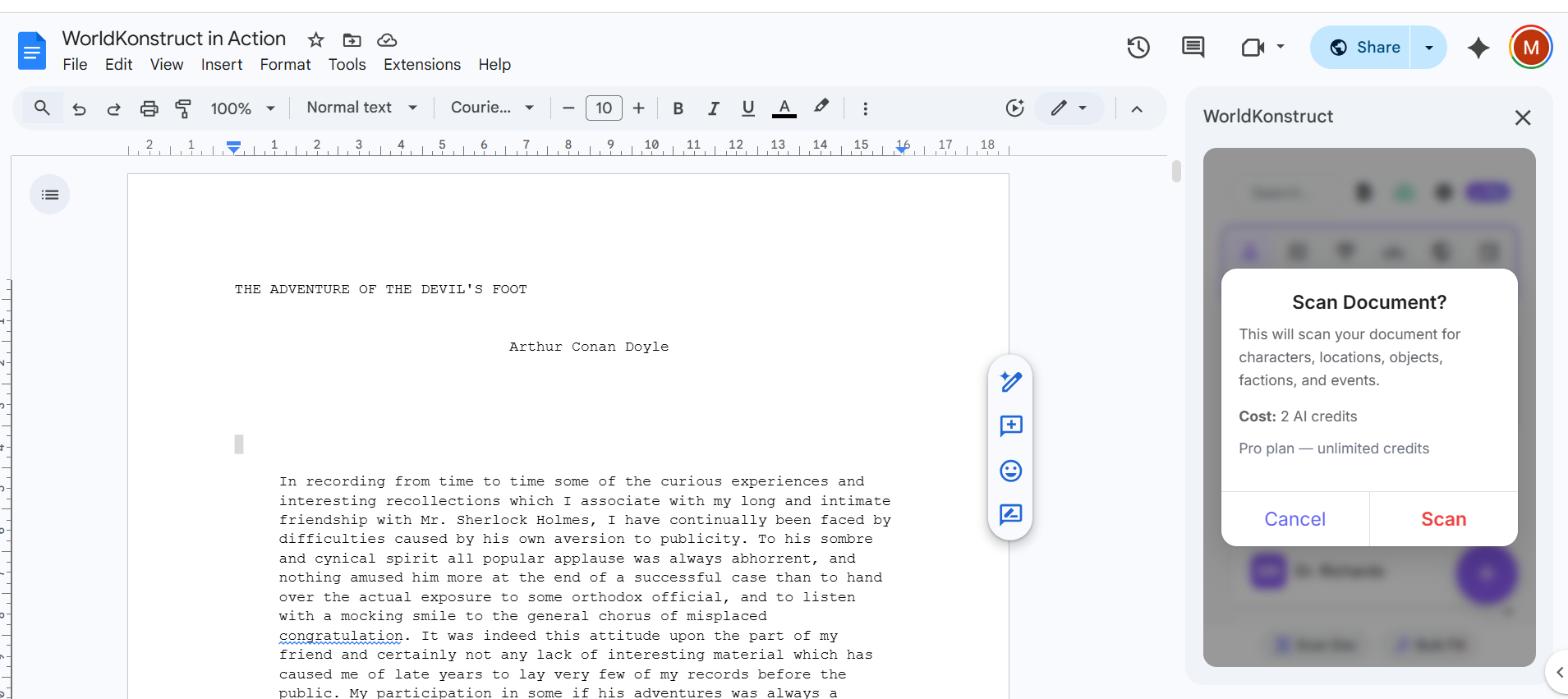
You can rescan anytime by clicking "Scan Doc" in the sidebar footer. A confirmation dialog shows the credit cost (2 AI credits) and your remaining balance before proceeding. As you write more, new characters and locations will be detected. Check "Remember skipped terms" to stop seeing entities you've already dismissed.
Smart rescanning: WorldKonstruct automatically checks what changed since your last scan and only processes the sections that need it — no extra steps or dialogs required. See Smart Change Detection below.
auto_awesome Alias Detection in Action
In Arthur Conan Doyle's stories, Irene Adler is also called "the woman." The scan detects both forms and groups them as aliases of a single entry. If your protagonist is called "Elena" in narration and "Lena" in dialogue, the AI recognizes them as the same character and creates one entry with both names listed as aliases.
Large Documents
Very long documents (15,000+ words) are automatically chunked into sections with smart overlap, and results are merged with multi-layer deduplication. The AI uses multiple strategies to prevent duplicate entries:
- Exact match — same name, same type
- Case-insensitive match — "the Capitol" = "The Capitol"
- Fuzzy match — catches typos and variant spellings
- Title stripping — "Mr. Darcy" matches "Fitzwilliam Darcy"
- Cross-category dedup — same name in multiple categories keeps highest priority
Smart Change Detection
WorldKonstruct fingerprints your manuscript and automatically picks the most efficient scan strategy — no dialogs, no choices required. Just click Scan Doc and the right thing happens:
- Unchanged document — returns instantly. A green toast confirms "Your bible is up to date" and the button displays a check mark for a few seconds. No AI calls made.
- Some sections changed — runs an incremental scan automatically, targeting only the changed sections. You'll see a toast like "Re-scanning 2 changed section(s)…" — faster and cheaper than a full scan.
- Major changes or first scan — runs a full parallel scan across all six entry types.
Character Identity Reconciliation
After initial extraction, WorldKonstruct cross-references character descriptions against event descriptions to catch identity contradictions revealed by plot twists. If an event says "Breckenridge was actually a humanoid robot," the character's description is automatically corrected—even if earlier text described them as human. This works for any genre: robots, spies, shapeshifters, double agents.
add_circleStart from Scratch
Who: Architects who want full manual control, or writers starting fresh.
Why: You want to build every entry yourself at your own pace.
When: You prefer structured, deliberate worldbuilding.
Optionally enter a world name and click "Create Story Bible." An empty bible is created in Google Sheets with tabs for each entry type. If you leave the name blank, one is generated automatically from your document title. From there, you can add entries manually, scan your manuscript later, or reconnect the same bible from another document when you need it.
linkConnect Existing Bible
Who: Series authors, collaborators, or anyone with an existing bible spreadsheet.
Why: You want to share one bible across multiple Google Docs.
When: Starting a sequel, writing from a different character's POV, or co-authoring.
Click "Connect Existing Bible" and a picker appears listing every bible you own or have access to. Select the one you want and click "Link Bible." No need to hunt for URLs or spreadsheet IDs—the picker handles it. The sidebar loads your entries immediately. See Series Support for best practices on sharing a bible across documents.
Working With Entries
Main View
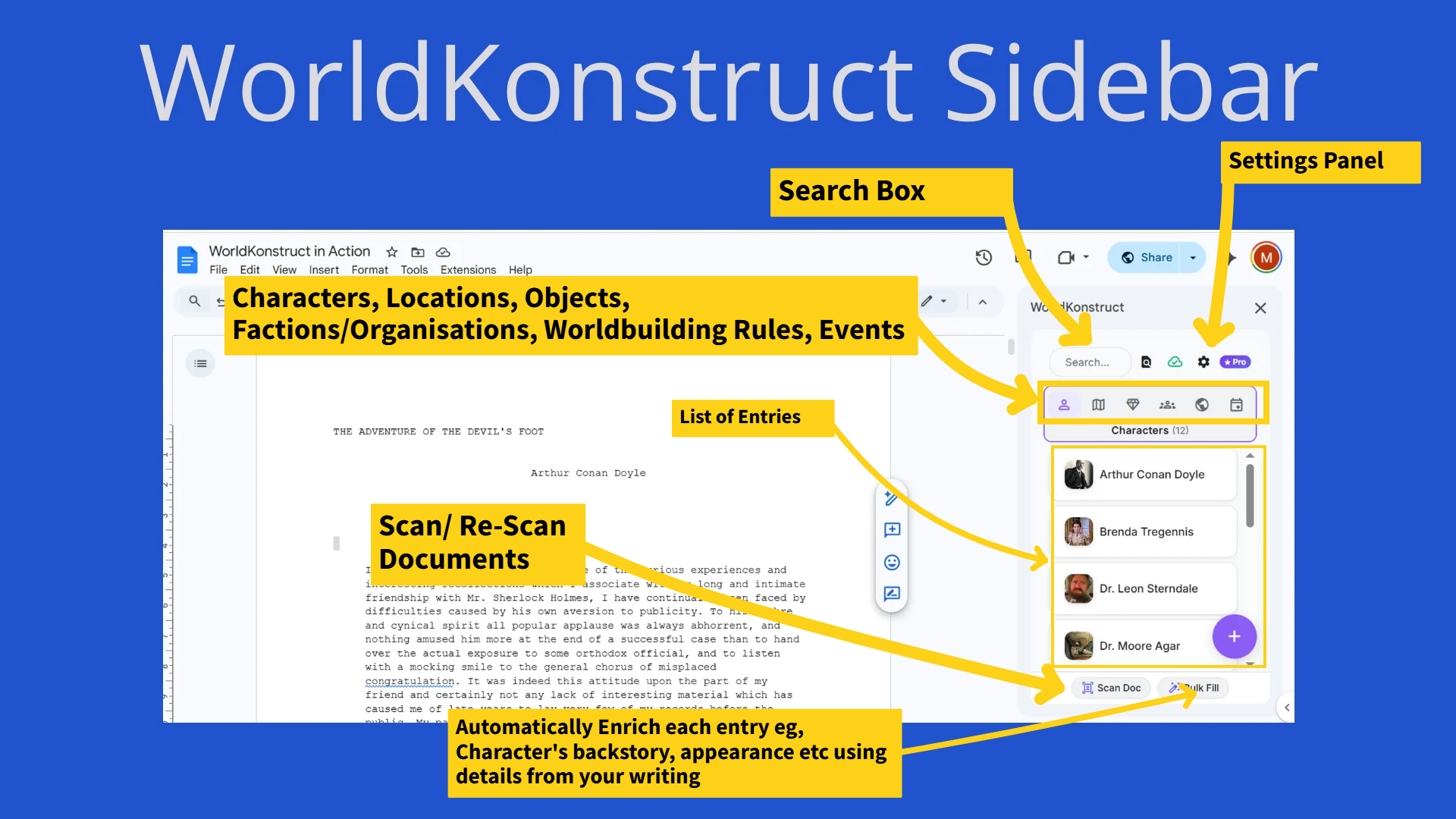
After setup, this is the screen you'll see every time you open WorldKonstruct. Here's what's on it:
| Element | Where | What It Does |
|---|---|---|
| Header bar | Top | App logo, sync status icon (cloud_done when synced), settings gear, and entry count badge (e.g., "142/150" on free tier) |
| Search bar | Below header | Type to filter entries across all categories. Includes a find_in_page button that searches the bible for text you've selected in your Google Doc |
| Category nav | Below search | Six icon buttons—one per entry type. Tap to filter the list. Active category is highlighted with a color bar |
| Entry list | Center | Scrollable list of entries in the active category. Each shows avatar, name, status chip, tags, and sequence badge (Events only) |
| Footer tools | Bottom-left | Scan Doc — re-scan your document for new entities (shows confirmation with credit cost). Enrich All — AI-fill empty fields across all entries. (Generate Reports is in Settings → Advanced.) |
| + button (FAB) | Bottom-right | Opens the Quick Create panel to add a new entry. Color matches the active category |
lightbulb Find Selected Text — A Hidden Power Feature
Click the find_in_page icon in the search bar. WorldKonstruct searches your bible for:
- Selected text — highlight a name in your Google Doc first
- Word at cursor — just place your cursor inside a word (no selection needed!) and click the button
This is the fastest way to jump from your manuscript to the relevant entry—no typing required.
Entry Detail View
Click any entry in the list to open its detail view.
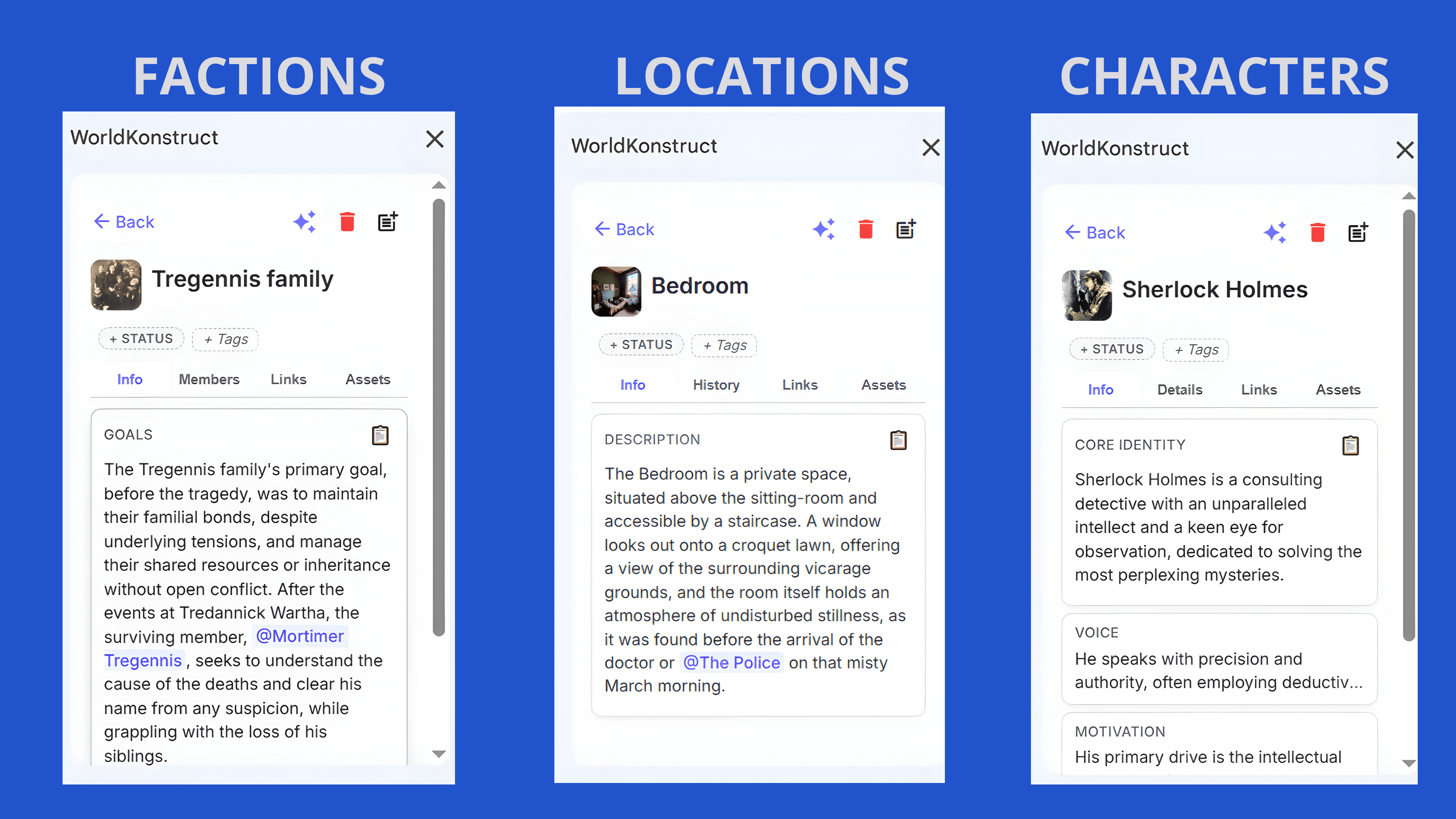
Layout
- Back button (← Back) — returns to the entry list
- Action buttons — AI Enhance (auto_awesome), Delete (delete)
- Avatar — click to view in lightbox, double-click to change
- Entry title — double-click to edit
- Status & Tags — click to edit (Draft / In Progress / Complete / Needs Review)
- Tab bar — entry-type-specific tabs (e.g., Characters have Info | Details | Links | Assets)
- Field cards — each field is a collapsible card. Click to expand. Double-click to edit.
Navigating Between Entries
Wiki-links in field text (created by @mentions) render as clickable blue text. Click any linked name to jump directly to that entry's detail view. Under the Links tab, the Mentioned In section shows every entry that references this one—these backlinks are computed automatically and instantly.
Creating Entries
There are three ways to create entries, depending on your workflow:
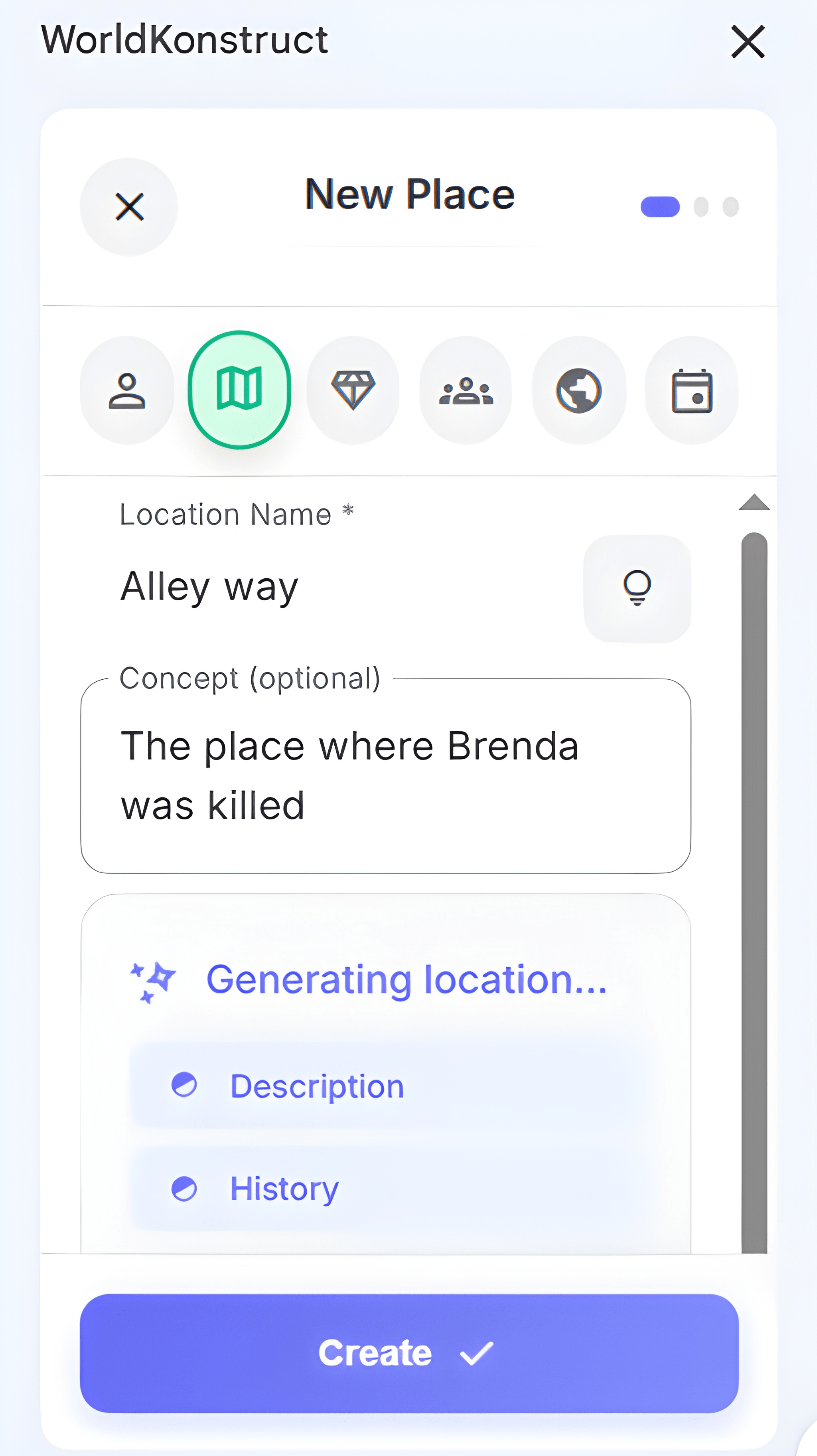
Quick Create (Full Panel)
Click the + button. A full-screen panel opens with:
- Type selector — six icon pills across the top. Tap to switch entry type
- Name field — with a lightbulb button for AI name suggestions
- Concept field (optional) — a short description that guides AI generation
- "Generate with AI" — populates all fields from your concept. A progress indicator shows each field being generated
- "or write manually" — shows the full empty form for manual entry
- Per-field ✨ buttons — regenerate individual fields without re-doing the whole entry
Quick Add (Inline)
When typing an @mention in any text field, if the entry doesn't exist yet, the autocomplete dropdown shows a "Create 'X'" option. Click it to create a minimal entry instantly without leaving your current edit. The @mention link is inserted automatically.
Google Sheets (Bulk)
Open your bible in Google Sheets (via Settings → "Open in Google Sheets") and add entries directly to the spreadsheet rows. This is fastest for bulk data entry. See Sheets-First Workflow.
info Bulk Operations Hint
If you create 4+ entries within 6 minutes, a banner appears suggesting you switch to Google Sheets for bulk work. This isn't an error—it's a genuine recommendation. Sheets is significantly faster for entering many entries at once.
Editing Entries
Quick Edit Panel
Double-click any field card in the entry detail view to open the Quick Edit panel. It slides up as a full-screen editor with:
- The field name and entry name in the header
- A text area for editing (supports Markdown: **bold**, *italic*, - lists, ## headers)
- Auto-save — changes save automatically as you type (debounced)
- "Open in Sheets" button — jumps to this exact cell in Google Sheets
warning No Undo in Quick Edit
Quick Edit auto-saves. There's no undo button. If you accidentally delete content, use "Open in Sheets" → Google Sheets' version history (File → Version history) to recover previous values.
Field Features
- Markdown rendering — fields render bold, italic, headers, and lists when collapsed
- Wiki-links — @mentions render as clickable links that navigate to the referenced entry
- Copy button (content_copy) — appears when a field is expanded. Copies content with wiki-links stripped for clean pasting
- Empty fields — show "Not set. Click edit to add." in italic
lightbulb Status & Tags
Status and Tags are edited with a single click (not double-click, unlike other fields). Status options: Draft, In Progress, Complete, Needs Review. Tags are free-text chips—use them for categories, themes, or workflow markers.
Entry Types
WorldKonstruct organizes your world into six types. Each has its own fields, AI generation prompts, and tab structure in the detail view.
Character
| Field | Purpose | Example |
|---|---|---|
| Name | Full name | Jon Snow |
| Role | Story function | Protagonist, Mentor, Antagonist |
| Description | Core identity | Bastard son of Ned Stark, raised at @Winterfell |
| Motivation | What drives them | Prove his worth despite his birth |
| Fear | What they avoid | Being truly alone, without family or purpose |
| Voice | How they speak | Formal, earnest, avoids humor |
| Appearance | Physical description | Dark hair, grey eyes, lean build |
| Backstory | History before the story | Raised alongside trueborn Stark children… |
| Aliases | Other names | The Bastard, Lord Snow, The White Wolf |
| Status | Narrative state | Active, Deceased, Missing |
| Workflow Status | Completion state | Draft, In Progress, Complete, Needs Review |
| Tags | Free-text labels | Stark, Night's Watch, King |
Detail view tabs: Info | Details (motivation, fear, voice) | Links (relationships, backlinks) | Assets (avatar, images, links)
lightbulb Archetype-Based Character Ordering
After a document scan or Enrich All, WorldKonstruct classifies your cast against 8 Dramatica archetypes and pins them at the top of the Characters tab in canonical pair order: Protagonist → Antagonist → Guardian → Contagonist → Sidekick → Skeptic → Reason → Emotion. Unassigned characters follow in alphabetical order. Archetype tags (e.g., archetype:protagonist) appear in each character's Tags field.
auto_awesome From the Masters: Jon Snow
George R.R. Martin's Jon Snow works because every field reinforces the others. His role (outsider-turned-leader) creates his motivation (prove his worth). His backstory (bastard of Winterfell) creates his fear (being alone). His voice (formal, earnest) reflects someone who's always performing legitimacy. When you build a character, ask: does each field support or complicate the others?
Location
| Field | Purpose | Example |
|---|---|---|
| Name | Place name | Hogwarts School of Witchcraft and Wizardry |
| Description | What it looks/feels like | A sprawling medieval castle in the Scottish Highlands… |
| History | How it came to be | Founded by four wizards circa 990 AD… |
| Aliases | Other names | The Castle, School |
| Status | Workflow state | In Progress |
| Tags | Labels | magical, school, Scotland |
Detail view tabs: Info | History | Links | Assets
check_circle The Five Senses Test
A location description should answer: What do you see? Hear? Smell? Feel (texture, temperature)? Taste (if relevant)? Hogwarts isn't just a castle—it smells of old parchment, echoes with moving staircases, and feels cold in the dungeons and warm near the Gryffindor fire.
Object
| Field | Purpose | Example |
|---|---|---|
| Name | Object name | The One Ring |
| Description | What it is | A plain gold band that grants invisibility… |
| Abilities | What it does | Turns the wearer invisible, extends lifespan, corrupts the bearer |
| History | Origin & journey | Forged by @Sauron in Mount Doom… |
| Current Holder | Who has it now | @Frodo Baggins |
| Aliases / Status / Tags | Standard fields | The Precious, Isildur's Bane |
Detail view tabs: Info | Details (abilities, purpose) | Links | Assets
lightbulb Chekhov's Gun
If an object appears in your story, it should matter. The One Ring isn't just jewelry—it drives the entire plot. When creating an object, ask: What conflict does it create? Who wants it? What happens if it's lost or destroyed?
Faction
| Field | Purpose | Example |
|---|---|---|
| Name | Group name | House Stark |
| Purpose | What they exist for | Rulers of the North, bound by honor and duty |
| Culture | Values, traditions | Old Gods worship, stark justice, "Winter is Coming" |
| History | Origin & events | Descended from the First Men, 8000 years of rule… |
| Key Members | Linked characters (auto-populated by AI) | @Ned Stark (Lord), @Arya Stark (daughter) |
| Aliases / Status / Tags | Standard fields | The Wolves, Winterfell's Lords |
Detail view tabs: Info | Members (linked characters with roles) | Links | Assets
lightbulb AI-Populated Key Members
When you use AI Enhance or Enrich All on a Faction, WorldKonstruct uses a dedicated AI call to determine which Characters actually belong to the faction—not just who's mentioned in the text. The AI distinguishes members from outsiders, investigators, and opponents. Each member gets an appropriate role (Leader, Founder, Member, Agent, etc.).
auto_awesome From the Masters: House Stark
Martin's factions work because each has a clear identity (wolves/honor), internal tensions (duty vs. survival), and relationships with other factions (Stark vs. Lannister). Use the Key Members field to link characters and show the power dynamics within the group.
Worldbuilding
A flexible type for rules, systems, and lore that don't fit other categories.
| Field | Purpose | Example |
|---|---|---|
| Name | System/concept name | Allomancy |
| Category | Subtype | 🔮 Magic System, 🏛️ Culture, 📜 History, ✍️ Style Guide, 🔧 Technology, 💡 Custom |
| Content | Full description | A magic system powered by ingesting and "burning" metals… |
| Aliases / Status / Tags | Standard fields | Metal Arts, Metalborn Powers |
Detail view tabs: Info | Assets
Common uses: Magic systems, political structures, religions, languages, technology levels, style guides, historical timelines.
check_circle Sanderson's First Law
"An author's ability to solve conflict with magic is directly proportional to how well the reader understands said magic." If your magic system solves problems in your story, it needs clear rules documented in a Worldbuilding entry. If it's mysterious and atmospheric, less documentation is fine.
warning Worldbuilder's Disease
Building world systems is addictive. If you've spent three weeks on your monetary system and haven't written a scene yet, create one Worldbuilding entry with the essentials and start writing. You can always come back and deepen it later.
Event
| Field | Purpose | Example |
|---|---|---|
| Title | Event name | The Red Wedding |
| Description | What happened | A massacre at @The Twins during a wedding feast… |
| Significance | Why it matters | Destroyed House Stark's military power and shattered Northern resistance |
| Sort Date | Timeline ordering | 299 AC (or any number—used for chronological sorting) |
| Display Date | Human-readable date | "Year 299, Third Moon" |
| Participants | Who was involved | @Robb Stark, @Walder Frey, @Catelyn Stark |
| Location | Where it happened | @The Twins |
| Sequence | Timeline position | 30 (displayed as badge "3" in entry list) |
| Aliases / Status / Tags | Standard fields | The Betrayal at the Twins |
Detail view tabs: Info | When & Where (dates, location) | Who (participants) | Assets
lightbulb Sort Date vs. Display Date
Sort Date is a number used to order events chronologically (e.g., 299, 300, 301). Display Date is the human-readable label shown in the UI (e.g., "Year 299, Third Moon" or "Chapter 12"). This lets you sort events correctly even in worlds with non-standard calendars. The Sequence badge shows in the entry list as a numbered chip (the Sequence value ÷ 10).
auto_awesome From the Masters: The Red Wedding
Martin's most devastating event works because it's foreshadowed (the Freys' resentment, Robb breaking his vow), participants are linked (every major character present has motivations documented elsewhere), and the significance ripples through the entire story. When you create an event, use @mentions in the Participants and Location fields—this builds the web of connections automatically.
Linking & Connections
Links are WorldKonstruct's core value proposition. They turn a flat list of entries into a navigable web where everything is connected—like a personal wiki for your world.
@Mentions
Type @ in any text field to link one entry to another. Two syntaxes work:
@Name— for single-word names (e.g.,@Maya)@[Full Name]— for multi-word names (e.g.,@[Katniss Everdeen])
When you type @, an autocomplete dropdown appears showing matching entries from your bible. Select one and a wiki-link is inserted automatically. If the entry doesn't exist yet, select "Create 'X'" to create it inline via Quick Add. Events entries are excluded from the @mention dropdown — they're structural entries, not entities you'd reference inline.
Internally, links are stored as [[entry_id|@Display Name]]. This means if you rename an entry, every reference updates automatically—because links are ID-based, not name-based.
lightbulb AI-Generated @Mentions
When AI generates content (via Enrich All, AI Enhance, or Generate with AI), it intentionally writes @Name syntax when referencing other entries. WorldKonstruct then resolves these @mentions into proper wiki-links automatically—using progressive prefix matching so multi-word names like @Dr. Nathan Kerrigan are correctly linked even when the AI writes full entry text around them. Self-references (an entry mentioning its own name) have the @ stripped, leaving clean plain text.
auto_awesome The Magic of Rename
You create a character called "Tom" and mention him in 15 entries. Later you rename him to "Thomas Reid." In a normal wiki, you'd need to find-and-replace across every mention. In WorldKonstruct, the name updates everywhere instantly because the link stores the entry's ID, not the name string. Rename with confidence.
Backlinks (Mentioned In)
Every entry has a Mentioned In section under the Links tab. This shows every other entry that references it via @mention. You don't create these manually—they're computed automatically in real-time (under 15ms, even with 1,000+ entries).
Backlinks are the fastest way to answer: "Where is this character mentioned?" "What events involve this location?" "Who holds this object?"
Relationships
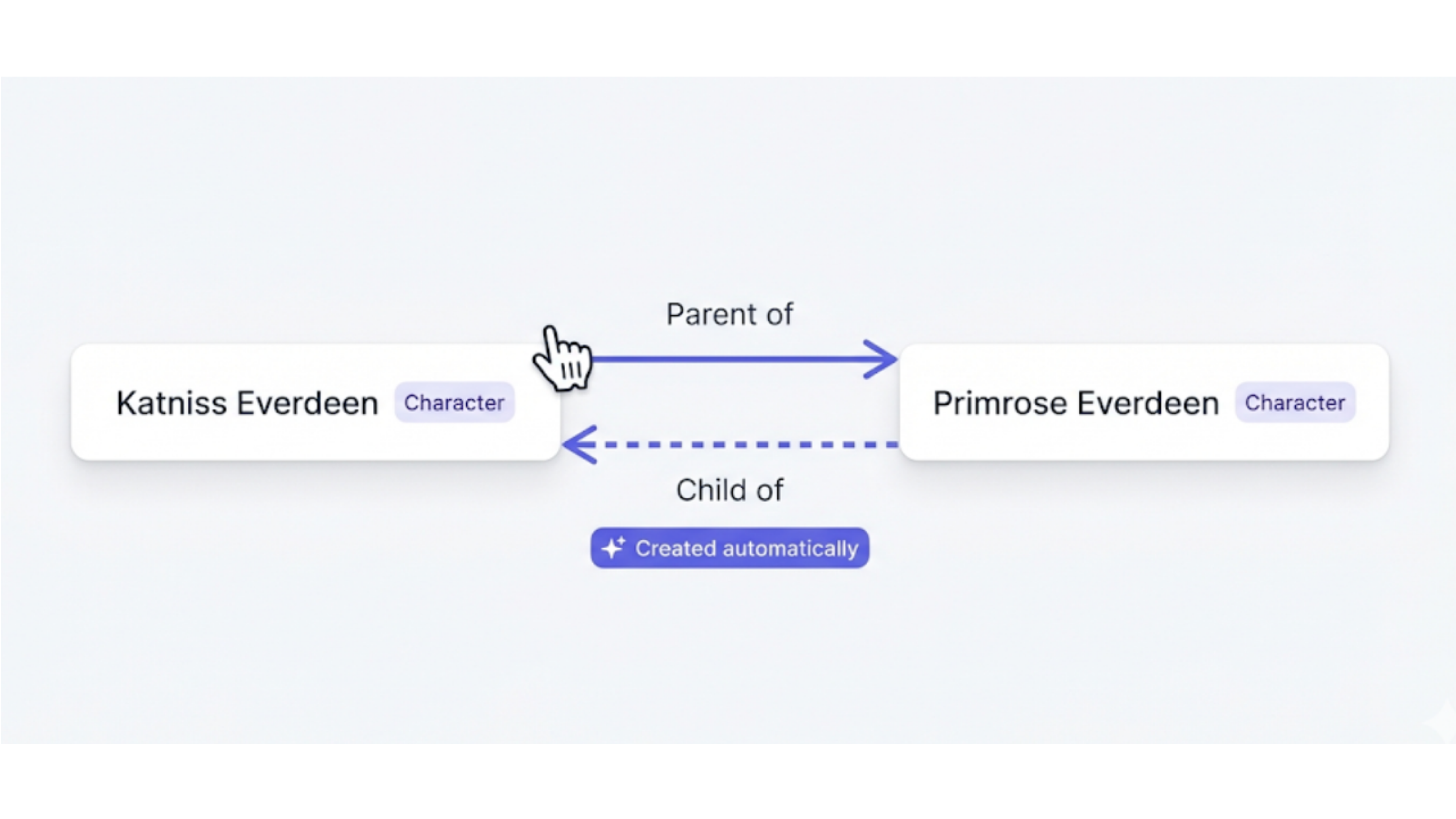
Characters can have formal relationships with each other (parent, sibling, rival, mentor, etc.). In the entry detail view's Links tab, add a relationship and WorldKonstruct automatically creates the reverse connection:
- Add "Katniss → Parent of → Primrose" → Primrose automatically gets "Child of → Katniss"
- Add "Aragorn → Married to → Arwen" → Arwen automatically gets "Married to → Aragorn"
14 relationship presets are available: Parent of, Child of, Sibling of, Married to, Partner of, Friend of, Rival of, Enemy of, Mentor of, Student of, Ally of, Servant of, Master of, and Associated with.
lightbulb AI-Classified Relationships
When you use Enrich All or AI Enhance, WorldKonstruct automatically detects relationships mentioned in your manuscript and classifies them into appropriate types. If the AI detects "Holmes mentor to Watson" in your text, it creates a "Mentor of" relationship (not just "Associated with"). The reverse connection is created automatically.
auto_awesome The Web of Story: Percy Jackson
A single character entry for Percy Jackson can connect to 11+ other entries through relationships and @mentions: Poseidon (father), Sally Jackson (mother), Annabeth Chase (partner), Grover (friend), Camp Half-Blood (home), Riptide (weapon), Olympus (faction), the Prophecy (event), Greek Mythology (worldbuilding). Each connection enriches the web and makes your bible a navigable universe.
Exporting & Sharing
WorldKonstruct isn't a walled garden. Your data belongs to you, and we provide powerful tools to export, backup, and share your story bible outside of Google Docs.
HTML Export — Your Bible as a Website
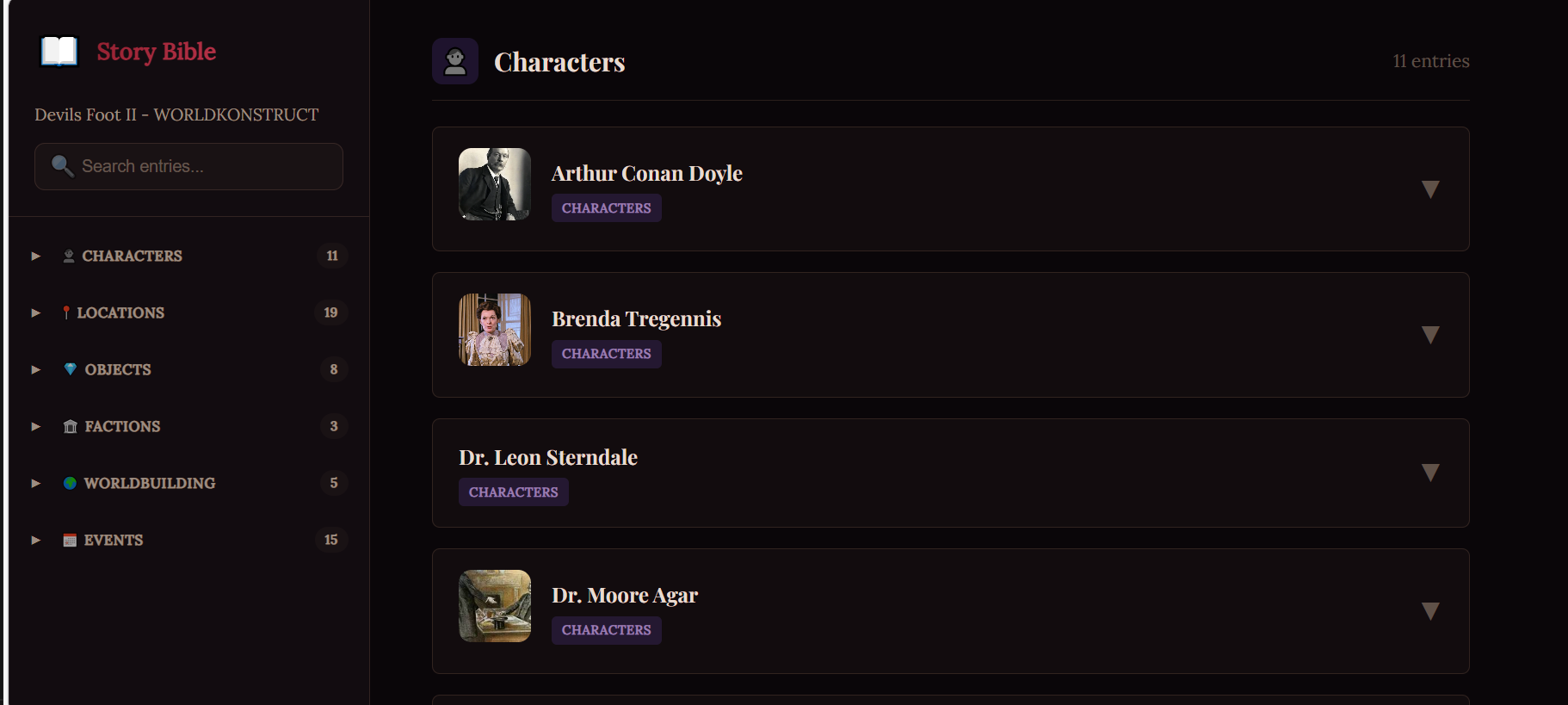
Turn your entire story bible into a beautiful, interactive website contained in a single HTML file. Share it with beta readers, hand it off to a co-author, or keep it as an offline reference that works without an internet connection.
Features
- Single file — no messy folders or ZIPs. One file, usually under 1MB, containing your entire world.
- Interactive — includes live search, filtering by entry type, and collapsible field cards.
- Genre-aware visual themes — the export automatically picks a design theme based on the genre you set in your World Seed:
- Fantasy / Vellum — warm antique gold on deep dark background, old-book serif fonts. Your Tolkien-tier world deserves Tolkien-tier presentation.
- Sci-Fi / Void — void black with electric cyan, clean geometric typeface, entry names in caps. Like your bible was formatted aboard a starship.
- Mystery / Noir — near-black background with blood-crimson accents, Playfair Display serif. Every entry looks like a case file.
- Default / Editorial — clean off-white with indigo accent, for everything else. Professional and readable.
- Offline compatible — works without internet. Images load from wherever they're hosted.
- Wiki-linking — click any colored link to jump to that entry, just like in the app.
To export: Settings → Import & Export → Export HTML.
Other Export Formats
- JSON Backup — A raw data dump of your entire bible. Use this for backups or to transfer your data to a new bible spreadsheet via Import.
- Markdown — Exports your entries as a folder of `.md` files (one file per entry type), formatted for Obsidian, Notion, or GitHub.
Workflows
Sheets-First Workflow
Your story bible lives in a Google Sheet—one tab per entry type. You can open it anytime from Settings → "Open in Google Sheets" or by clicking "Open in Sheets" in any Quick Edit panel.
When to Use Sheets
- Bulk data entry — adding 10+ entries is much faster in rows than through the sidebar
- Bulk editing — find-and-replace across your entire bible
- Data review — see all entries of a type in a sortable, filterable table
- Collaborative editing — multiple authors editing the same bible simultaneously
Tips for Sheets Editing
- The ID column auto-generates. Leave it blank for new entries—WorldKonstruct fills it on sync
- Use @mentions in cells the same way:
@[Character Name]or wiki-link format - Don't delete or rename column headers—they map to field names
- You can reorder rows freely; order doesn't affect the sidebar
auto_awesome The Ultimate Architect: J.R.R. Tolkien
Tolkien would have loved Sheets mode. His legendarium was essentially a massive spreadsheet— genealogies, timelines, language lexicons, and geographic surveys that cross-referenced each other. If you're the type who builds the world before writing the story, the spreadsheet is your primary workspace. The sidebar is where you reference it while you write.
Syncing
WorldKonstruct uses smart caching to keep your sidebar fast and responsive:
- Instant loading — your sidebar loads immediately from local cache
- Persistent storage — your data survives tab closes and browser restarts
- Google Sheets — your canonical data store (your own Google Drive)
When you edit in the sidebar, changes save to all three layers automatically. When you edit in Sheets, the sidebar picks up changes on the next sync (automatic every few minutes, or click cloud_done in the header to force refresh).
The background task indicator ("Saving… X change(s)") at the bottom of the sidebar shows when async operations are in progress. A 🔄 pending badge on an entry means local changes haven't synced to Sheets yet—they will automatically.
Direct Sheets editing: The sidebar detects Name and ID changes made directly in the Google Sheet. Edits to any other field — backstory, description, relationships, etc. — made directly in the Sheet are not automatically detected. Use the sidebar to edit those fields, or click the sync icon after editing in Sheets to force a full refresh.
Series Support
Share a single bible across multiple Google Docs—perfect for novel series, shared universes, or different POV documents.
How to Set Up
- Create your bible in your first document (using any pathway)
- In your second document, choose "Connect Existing Bible"
- Select the bible from the picker (it lists every bible you own or have access to)
- Both documents now share the same bible
| Approach | Best For | Trade-off |
|---|---|---|
| Shared bible | Sequel novels, different POVs of the same world | All entries visible in all documents. Can't have book-specific entries |
| Separate bibles | Spin-offs, loosely connected worlds | Independent—no cross-referencing. Export/import to copy entries |
auto_awesome 📚 Harry Potter Bible Across Seven Books
Imagine J.K. Rowling's bible: 100+ characters, 50+ locations, dozens of magical objects, Hogwarts houses as factions, the entire history of wizarding Britain. That's one bible, shared across seven documents. Every time she writes "Snape" in Book 6, she can reference the same entry she created in Book 1—with six books' worth of accumulated detail. That's the power of a shared bible.
Features & Tools
AI Tools
When you need the AI to generate, fill, enhance, or name.
AI-Assisted Entry Generation
In Quick Create, type a name and concept, then click "Generate with AI." The AI populates all fields relevant to the entry type (description, motivation, fear, voice, appearance, backstory for characters; description, history for locations; etc.). A progress indicator shows each field being generated. You can edit any field afterward or click the ✨ button on any section header to regenerate just that field.
AI Name Suggestions
In Quick Create, click the lightbulb button next to the name field. The AI suggests 3 names based on your world's genre, tone, and existing naming patterns. Name suggestions are free (they don't count toward the daily AI limit). A 100+ trope blocklist prevents generic fantasy names.
AI Enhance
In any entry's detail view, click the auto_awesome button. The AI scans your Google Doc for context about this entry and fills any empty fields using information from your manuscript. Existing content is never overwritten.
Smart context features:
- Length-aware output — short fields (motivation, fear) get concise results; long fields (backstory, history) get detailed content
- Status-aware — deceased characters get past-tense backstories; active characters get present-tense motivations
- Contextual awareness — when generating appearance, the AI considers the character's backstory and voice; when generating history, it considers existing relationships
- Specific, not generic — outputs avoid clichés like "desires power" or "speaks formally"
Enrich All
Click "Enrich All" in the sidebar footer. The AI processes all entries with empty fields, populating them based on context from your document and other entries. A modal shows how many entries will be processed, how many fields will be filled, and estimated time. Processing happens in intelligent batches—you can stop at any time.
Enrich All V2 features: Wiki-links are automatically inserted when AI mentions other entries (e.g., "trained by @[Mentor Name]"). Relationships detected by AI are automatically classified into appropriate types (Parent of, Friend of, Rival of, etc.) and bidirectional connections are created—no manual relationship setup needed.
Generate Reports
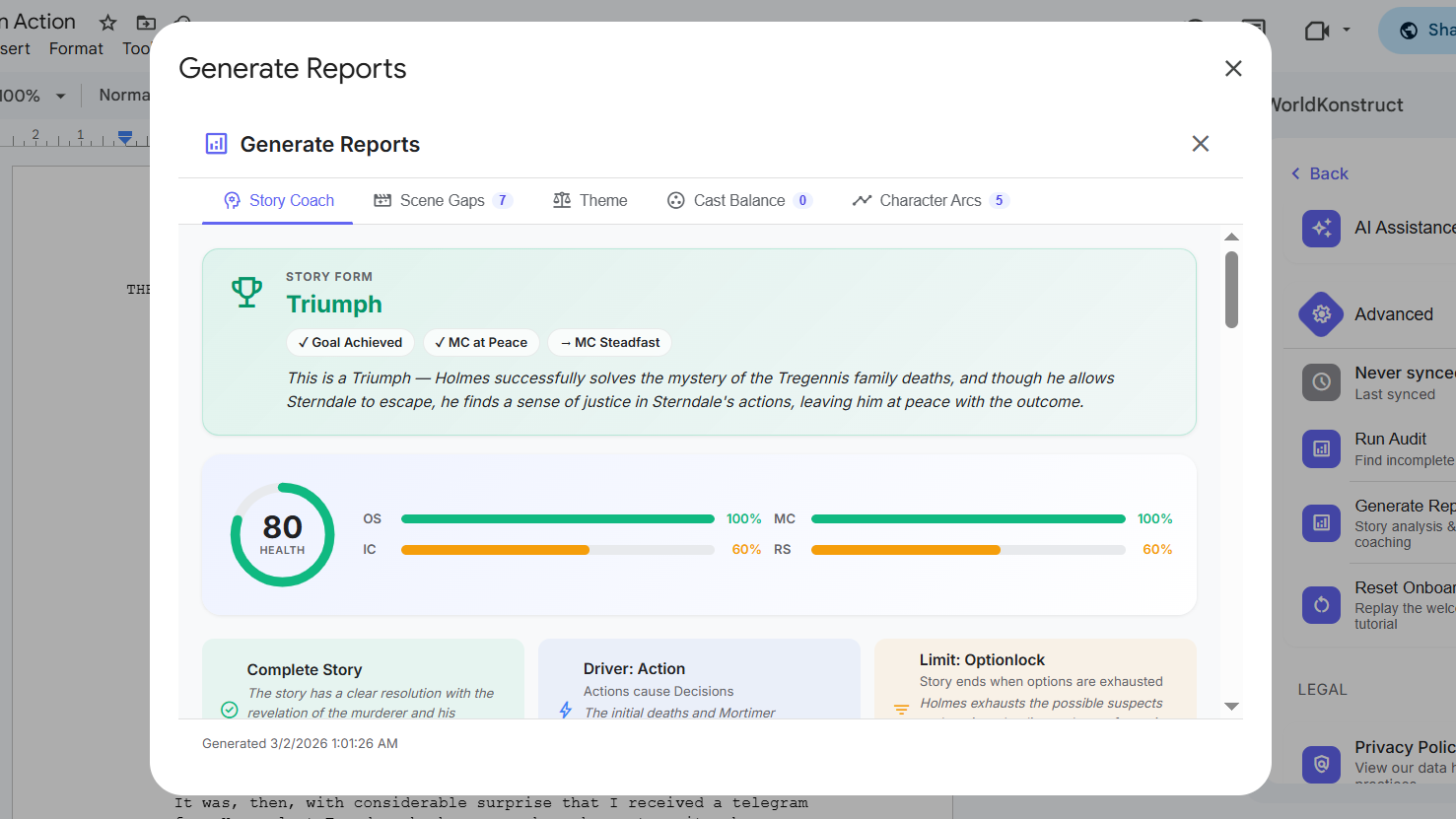
Find this in Settings → Advanced → Generate Reports. WorldKonstruct reads your story bible and manuscript, then runs a deep structural analysis using Dramatica story theory. Think of it as a story editor who's read absolutely everything you've written and has very specific notes. Free users get 1 lifetime report; Pro users get unlimited. No extra API key or account required. The report has five tabs:
- Story Coach — Analyzes your story's four narrative throughlines (the overall plot, your main character's inner journey, their relationship with the influence character, and the relationship story) with coverage percentages showing which parts of your story are well-developed and which need more scenes. Also includes a Story Form banner (Triumph / Pyrrhic Victory / Personal Victory / Tragedy) so you can see if your current draft is heading where you intend.
- Scene Gaps — AI suggests 3–6 specific scenes your story is structurally missing. Each suggestion leads with why the scene is needed (the structural reason), then describes what actually happens in the scene. Includes a "Create as Event" button so you can drop the suggested scene directly into your bible.
- Theme — Identifies the dominant themes in each part of your story and examines whether your plot and theme are reinforcing each other or accidentally working against each other.
- Cast Balance — Maps your cast to Dramatica's 8 archetypal roles (Protagonist, Antagonist, Guardian, Contagonist, etc.) and checks for balance. If three characters are all filling the same role, the score reflects that — a perfectly balanced cast means each role is covered by a distinct character.
- Character Arcs — A deep look at how each of your characters actually changes (or doesn't) across the events in your bible. Flags characters who have fewer than 5 documented facts so you know when the analysis might be incomplete.
Reports are cached — if your document hasn't changed since your last report, it loads instantly. A "Cached report" banner with a "Regenerate" button appears so you can get a fresh analysis whenever you're ready.
World Seed
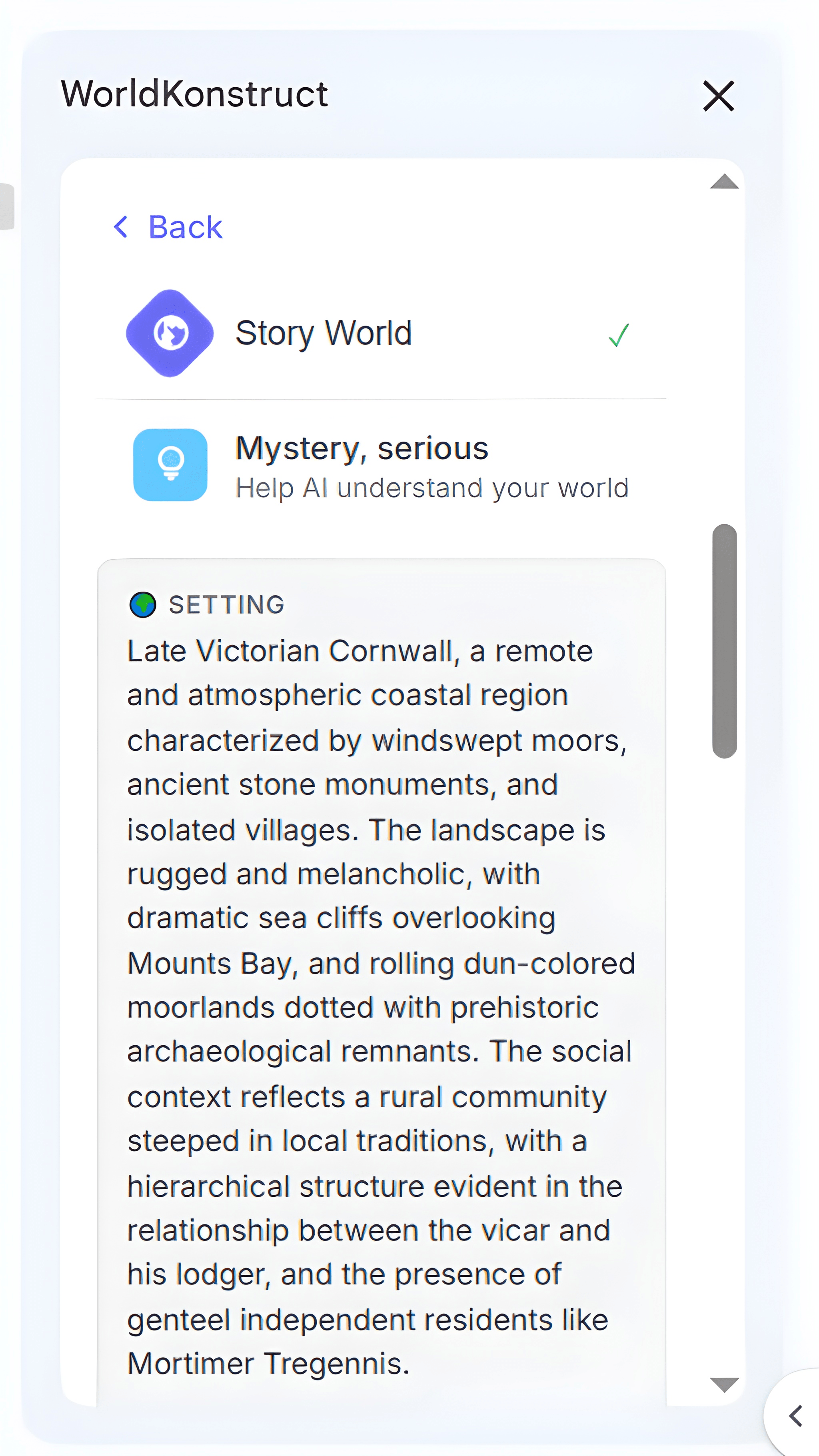
Your bible's creative DNA. Configure it in Settings → Story World → Configure World Seed. Set Genre (Fantasy, Sci-Fi, Mystery, etc.), Tone (Serious, Dark, Whimsical, etc.), Setting (up to 800 characters), and Story Seed (up to 1,500 characters). These values keep AI-assisted entry suggestions aligned with your world's tone, setting, and core premise.
Auto-generation: If you use the "I'm Already Writing" pathway, WorldKonstruct automatically infers genre, tone, setting, and story seed from your manuscript during the first scan. You can always edit these values later.
Visual Assets
When you want to add images to your entries.
Avatars
Each entry can have a circular avatar image. Double-click the avatar area in the entry detail view, then paste any image URL. WorldKonstruct is built to handle images from virtually everywhere on the web:
- Google Images — the easiest source. Right-click any thumbnail → "Copy image address"
- Google Drive — share publicly, paste the share link (auto-converted for display)
- Imgur, imgBB, Postimages — all work directly
- Pinterest — paste a pin URL; WorldKonstruct resolves the actual image automatically
- pCloud, Dropbox — paste share links; converted to direct image URLs
- ArtStation, DeviantArt, Wikia/Fandom, Wikimedia — all supported
- Pretty much anything else — if your browser can display it, WorldKonstruct can show it. For tricky domains, a background image loader automatically fetches and displays the image without anything changing on your end.
auto_awesome How to grab any image from the web
Find an image you like (Google Images is the easiest source), then right-click the image and select "Copy image address" (not "Copy image" or "Copy link"). Paste the copied address into the avatar URL field. That's it.
If the URL comes from a tricky source like Pinterest, pCloud, or a Fandom wiki, WorldKonstruct handles it behind the scenes — Pinterest pins resolve to the actual photo, pCloud share links convert to direct image URLs, and anything that can't be loaded directly is automatically fetched and displayed. If you can see it in a browser, WorldKonstruct can show it in your entry.
Image Gallery
Add multiple images to any entry via the Assets tab. When images are present, clicking the avatar opens a lightbox carousel with previous/next navigation, dot indicators, captions, and an Edit button to change the avatar directly from the lightbox. WorldKonstruct automatically detects images from virtually any source—if your browser can display it, it'll be recognized as an image.
Data & Export
When you need to back up, share, or publish your bible.
Import & Export
All options are in Settings → Import & Export:
- Export Backup (JSON) — complete snapshot of your bible. Use this for backups
- Import Backup — restore from a JSON export. Replaces your current bible entirely
- Export Markdown — all entries as .md files, organized by type
- Export HTML — a browsable offline website version of your entire bible
auto_awesome HTML Export: Your Bible as a Website
The HTML export creates a self-contained, browsable site with navigation, search, and all your entries formatted as web pages. Links between entries work. You can open it in any browser, share it with beta readers, or host it as a private reference site. No internet connection required—everything is embedded in the HTML files.
Import from Other Apps
Already have a story bible in Obsidian, Notion, or Scrivener? Bring it into WorldKonstruct without re-entering anything. Find all three import buttons in Settings → Import & Export, under the "Import from other apps" divider.
Supported Formats
| Source | What to Upload | How It Works |
|---|---|---|
| Obsidian | Your vault folder as a .zip | Reads all .md files. Folder names map to entry types (Characters/, Locations/, etc.). YAML frontmatter and wiki-links are preserved. |
| Notion | Notion export .zip (use Notion's Settings → Export → Markdown & CSV) | Database pages come as CSVs (one per database). Standalone wiki pages come as .md files and are AI-classified into the right entry type. |
| Scrivener | Your .scriv project folder as a .zip | Parses the .scrivx manifest and reads RTF content. Supports both Scrivener 2 and 3 formats. Research folder items become Worldbuilding entries. Binder items with just a title (no body text) are imported as stub entries — writers build structure first, fill in detail later. |
How Import Works
- Click the import button for your source app
- Drag & drop your
.zipfile (or click to browse) - WorldKonstruct extracts files, classifies entries by type using AI, and shows a review panel with checkboxes — same UI as document scanning
- Uncheck anything you don't want, then click "Create X Entries"
lightbulb Smart Import Features
- URL extraction — image URLs found in your notes are automatically routed to avatar and image gallery fields. Non-image URLs populate the Assets/Links tab.
- Duplicate merging — if the same entry appears in multiple files (e.g., a CSV row and a standalone .md), the richer version wins field-by-field
- Stub entries preserved — title-only items (common in Scrivener) are kept, not dropped. You can fill in details later via AI Enhance or manually
- Heading-to-field mapping — common headings like "## Backstory", "## Appearance", "## Abilities" are automatically mapped to the correct bible fields
Search & Filtering
Type in the search bar to filter entries across all categories. Results show highlighted snippets with context. Use the category nav icons to filter by type. The two work together: search within a category, or search across all.
Data Sync & Safety
Your data is cached locally for fast loading and stored permanently in Google Sheets. Edits sync automatically. If something goes wrong:
- Force refresh — click the sync icon in the header
- Clear cache — Settings → Advanced → Clear Local Cache (re-downloads from Sheets)
- Sheets version history — File → Version history in Google Sheets to undo any change
Bible Audit
In Settings → Advanced → Run Audit, WorldKonstruct scans your bible for issues:
#needs-depth— entries with too many empty fields#isolated— entries with no @mentions or backlinks#needs-members— factions with no linked characters#no-holder— objects with no current holder
Audit results appear as tags on entries, making them searchable and trackable.
Entry Management
When you need to organize, categorize, or manage your entries.
Aliases
Characters (and other entries) can have multiple names. Add them in the Aliases field, comma-separated. Aliases are used during document scanning (the AI recognizes them as the same entity) and in @mention autocomplete (typing any alias finds the entry).
Deceased, Missing & Active Status
Characters can be marked as Active, Deceased, or Missing via their narrative status (separate from workflow status like Draft/Complete). This affects:
- Visual indicator — Deceased/Missing characters show a status chip in the entry list
- AI generation — When AI generates fields for deceased characters, it uses past-tense phrasing and skips motivation/fear fields (since they no longer apply)
- Document-backed AI updates — deceased characters are treated as historical figures in AI-generated field suggestions
World Seed Settings
WorldKonstruct still lets you define genre, tone, and setting through World Seed settings, but the current scratch setup path does not begin with old genre-prefilled starter templates. You start with an empty bible, then add or refine those world details where they make sense for your workflow.
Performance
WorldKonstruct is optimized for speed. Your sidebar skeleton appears in under 2 seconds, document scanning completes in seconds, and even large bibles feel snappy. Sync operations, cache warming, and license checks all run in the background without blocking the UI.
Settings
Click the settings gear icon in the header to open Settings. Here's what lives there:
- Connected Bible — your bible's name and an "Open in Google Sheets" button for when you want to do bulk work
- License — your current plan, entry count, and an upgrade button if you need it
- Import & Export — JSON backup, Markdown export, HTML export, restore from backup, and import from Obsidian, Notion, or Scrivener (upload a .zip of your existing worldbuilding)
- Story World — configure your World Seed (genre, tone, setting, and story seed — the context that keeps AI-assisted entry work aligned with your world)
- AI Assistance — shows how many AI generations you've used, a privacy note about how your data is handled, and an optional field for your own API key (see tip below)
- Advanced — last sync time, Run Audit (scans your bible for incomplete or isolated entries), Generate Reports (story structure analysis — see Generate Reports), and Reset Onboarding (useful if you want to restart setup on a fresh concept)
- Danger Zone — Clear Local Cache (re-downloads your bible from Google Sheets) and Disconnect Bible (unlinks this document from its spreadsheet)
lightbulb Bring Your Own API Key for Unlimited AI
In Settings → AI Assistance, you can add your own API key for unlimited AI generations instead of using the built-in daily allocation. Your key is stored in your Google Account's PropertiesService and is never sent to WorldKonstruct's servers. Three providers are supported:
- Google Gemini (
AIza...) — uses Gemini Flash 2.5 full. This is also the model used for all built-in (non-BYOK) AI features. - Anthropic (
sk-ant-...) — routes supported AI features through Anthropic Claude - OpenRouter (
sk-or-...) — routes supported AI features through OpenRouter's multi-provider routing
Your Data & AI
AI is a core part of WorldKonstruct. Here's exactly how it works, what data is involved, and where everything lives.
What's Sent to the AI
When you use an AI feature, the following is sent to a language model for processing:
- Entry generation: The entry name, your concept text, your World Seed settings, and existing entry names (for consistency)
- Document scanning: Your document text (or a chunk of it for large docs)
- AI Enhance / Enrich All: Document text + existing entry data for the entries being enhanced
- Name suggestions: Entry type, existing names, World Seed genre/tone
- External import (Obsidian/Notion/Scrivener): The text content of your imported files for AI-powered entry type classification. Your files are processed in-browser — only the extracted text is sent to the AI, and only when classification is needed
What's Never Sent
- Your Google account information or email address
- Your spreadsheet ID or URL
- Your avatar or gallery images
- Usage analytics or personal metadata
Where Your Data Lives
| Data | Storage | Controlled By |
|---|---|---|
| All entries & fields | Google Sheets (your Drive) | You |
| Cache for fast loading | Your browser (local cache) | You (clearable anytime) |
| Avatar images | Hosted at your image URL (Google Images, Imgur, imgBB, Pinterest, Google Drive, etc.) | You |
| License info | Secure payment provider | You (email-based lookup) |
| Licence and usage metadata | Supabase and LemonSqueezy (service metadata only) | Our processors and us |
Privacy
AI prompts are sent to a language model to generate a response. These providers do not train on your content. Once the response is delivered, your prompt data is not retained. WorldKonstruct stores no user content on its own servers.
Licensing
| Feature | Free Tier | Pro ($59 Early Access / $79 regular) |
|---|---|---|
| Entries | 150 entries + 10-entry grace | Unlimited |
| All features | ✓ Full access | ✓ Full access |
| Flexible setup paths | Included | Included |
| Generate Reports | 1 lifetime report | Unlimited |
| Updates | All updates | Lifetime updates |
Upgrade in Settings → License → "Upgrade - $59 (Early Access)". After purchase, click "Refresh" in the License section to activate immediately. The entry count badge in the header (e.g., "142/150") shows your current usage.
Troubleshooting & FAQ
auto_awesome 🤔 The Big Questions Every Writer Asks
How detailed should my entries be?
Detailed enough to prevent contradictions, sparse enough to stay flexible. If you're on your first draft, a sentence per field is fine. Deepen entries as your story solidifies.
When should I start my bible?
Right now. Whether you're mid-draft (use "I'm Already Writing" to catch up) or at page one (use "Start from Scratch"), the best time to start is before you need it.
What if my story changes?
Stories always change. Your bible is a living document, not a contract. Edit entries as your story evolves. Rename characters confidently—links update automatically.
In a Google Sheet on your Google Drive. WorldKonstruct creates it automatically when you set up your bible. You own it completely—you can open it, edit it, share it, or delete it like any other Google Sheet.
Partially. The sidebar loads from your browser cache so you can browse your entries without internet. However, editing, syncing, and AI features require an internet connection.
Yes. Share the bible spreadsheet with collaborators (via Google Sheets' standard sharing). Each author uses "Connect Existing Bible" and selects the shared bible from the picker to link their document. Edits from any author sync to the same bible.
Yes. All text fields support Markdown formatting. Use **bold**, *italic*, - list items, and ## headers. Markdown renders when the field card is collapsed; when editing, you work with the raw Markdown text.
The sidebar syncs periodically. To force an immediate refresh, click the cloud_done sync icon in the header bar. If entries still don't appear, try Settings → Advanced → Clear Local Cache, then refresh the page.
This usually means the add-on lost access to the bible spreadsheet. Try:
- Close the sidebar and reopen it (Extensions → WorldKonstruct → Open Sidebar)
- Make sure you're logged into the same Google account that owns the spreadsheet
- If using a shared bible, confirm the spreadsheet owner hasn't revoked your access
Large bibles (500+ entries) can take 15–25 seconds for a full sync. This is normal for the initial load. Subsequent loads should be instant (from cache). If sync consistently times out:
- Check your internet connection
- Clear local cache and try again
- If the spreadsheet is very large, check if there are unused rows/columns that can be cleaned up
Google Apps Script has rate limits on API calls. If you're editing rapidly (especially in Sheets while the sidebar is open), you may temporarily hit these limits. Wait 30–60 seconds and the sync will retry automatically. Your data is safe—nothing is lost during a rate limit.
Check that:
- The entry exists in your bible (search for it)
- For multi-word names, use brackets:
@[Katniss Everdeen] - There's no typo in the name
- You selected the entry from the autocomplete dropdown (manual typing without selecting may not create a proper link)
WorldKonstruct uses smart matching to detect potentially duplicate entries— e.g., "Jon Snow" and "John Snow." Click the tag to navigate to the potential duplicate. If they're intentionally similar (e.g., father and son with the same name), you can safely ignore the tag. It will disappear if you add distinguishing details to the names or aliases.
Use Google Sheets' version history: File → Version history → See version history. Find a version before the deletion and restore it. WorldKonstruct will pick up the restored columns on the next sync.
Not yet. WorldKonstruct uses a fixed schema for each entry type. Custom columns in the spreadsheet won't break anything, but they won't appear in the sidebar either. Use the Tags field for custom categorization, and text fields (Description, Backstory, etc.) for additional notes.
Avatars use image URLs from external hosts. If an avatar isn't showing:
- Right-click the image → "Copy image address" — do NOT use "Copy image" or "Copy link address" (the page URL won't work)
- The easiest source is Google Image Search — find any image, right-click it, select "Copy image address", and paste
- Other supported hosts: Imgur, imgBB, Postimages, Pinterest, pCloud, Dropbox, Google Drive, ArtStation
- Avoid URLs from Discord, DALL-E, or DeviantArt — these expire after a few hours
- Google Drive images must be shared publicly ("Anyone with the link")
Scene Gaps uses Dramatica story theory to analyze your narrative's four throughlines (Overall Story, Main Character, Influence Character, Relationship Story). It identifies weak throughlines and suggests 4-8 action-driven scenes to fill structural gaps.
Each suggestion includes:
- Which throughline it strengthens
- "Why This Scene?" — the structural reason it's needed
- A premise describing what the character does (not just dialogue)
- Suggested act placement and involved characters
- A "Create as Event" button to add it directly to your bible
Access it via Generate Reports → Scene Gaps tab.
Common reasons:
- The document has fewer than ~500 words (not enough context for AI extraction)
- All entities are already tracked in your bible
- The document is non-fiction or doesn't contain named characters/places
- Previously skipped entities are being remembered — uncheck "Remember skipped terms" and rescan
The more context you give, the better the output:
- Configure your World Seed — genre, tone, and setting steer all generations
- Write specific concepts — "a reluctant princess secretly funding rebels" beats "a princess"
- Build entries first — AI uses existing entries as context, so earlier entries improve later ones
- Use per-field ✨ regeneration — regenerate one field at a time until you're satisfied
It means the entry has local changes that haven't synced to Google Sheets yet. This is normal— the sync happens automatically in the background. The badge disappears once the sync completes. If it persists for more than a minute, check your internet connection or try forcing a sync via the header sync icon.
WorldKonstruct remembers your last scan. If you click Scan Doc and the document hasn't changed since your last scan, you'll see this message. You have two options:
- Got It — Close without scanning (you're already current)
- Scan Anyway — Runs a refinement scan. It looks for gaps in your bible coverage without re-extracting existing entries
WorldKonstruct uses Character Identity Reconciliation—a post-scan step that cross-references character descriptions against event descriptions. If your manuscript has a plot twist ("Breckenridge was actually a humanoid robot"), the AI corrects the character's description even if earlier text described them as human. This works for robots, spies, shapeshifters, double agents—any identity reveal.
Go to Settings → Danger Zone → Disconnect Bible. This unlinks the current document from the shared spreadsheet. Other documents connected to the same bible are unaffected. You can then create a new bible or link a different one.
Disconnecting does not copy entries into a new bible. If you want to fork the data, export a JSON backup first, then import it into a new bible.
Still Need Help?
If you can't find an answer to your question:
- Search this guide — use Ctrl+F / Cmd+F to find keywords
- Try the Bible Audit — Settings → Advanced → Run Audit diagnoses common problems
- Restart fresh — close the sidebar, refresh your document, and reopen WorldKonstruct
- Contact support — reach out through the add-on's support channel for personalized help
lightbulb Before Contacting Support
Gather this info to help us help you faster:
• Your browser and version
• The error message (if any)
• What you were doing when the problem occurred
• Screenshots if possible