Welcome to WordFokus!
Tired of the constant battle against distractions in Google Docs? WordFokus is your dedicated writing partner, designed to transform your document into a sanctuary for deep work. This guide will show you how to harness its powerful features to write faster, stay focused longer, and build unbreakable writing habits.
Who is WordFokus For?
- Novelists & Screenwriters: Maintain narrative flow and silence your inner editor during first drafts.
- Students & Academics: Power through essays and research papers without getting sidetracked.
- Bloggers & Content Creators: Draft high-quality content efficiently and consistently.
- Professionals: Write reports, proposals, and emails with clarity and focus.
- Anyone who wants to write more effectively in Google Docs!
WordFokus turns Google Docs into your personal writing haven.
Getting Started: Your First Focused Session
Let's get you set up and writing without distractions in under a minute.
1. Installation (Quick & Easy)
Adding WordFokus to Google Docs takes just a few seconds:
Open Google Docs
Go to docs.google.com and open any document.
Get Add-on
Click Extensions → Add-ons → Get add-ons.
Search & Install
Search for "WordFokus" and click Install. Grant the necessary permissions when prompted (we only need access to the current document).
That's it! WordFokus is now available under the "Extensions" menu in all your Google Docs.
2. Your First Launch
Ready to experience focused writing? Here's how to start:
Launch WordFokus
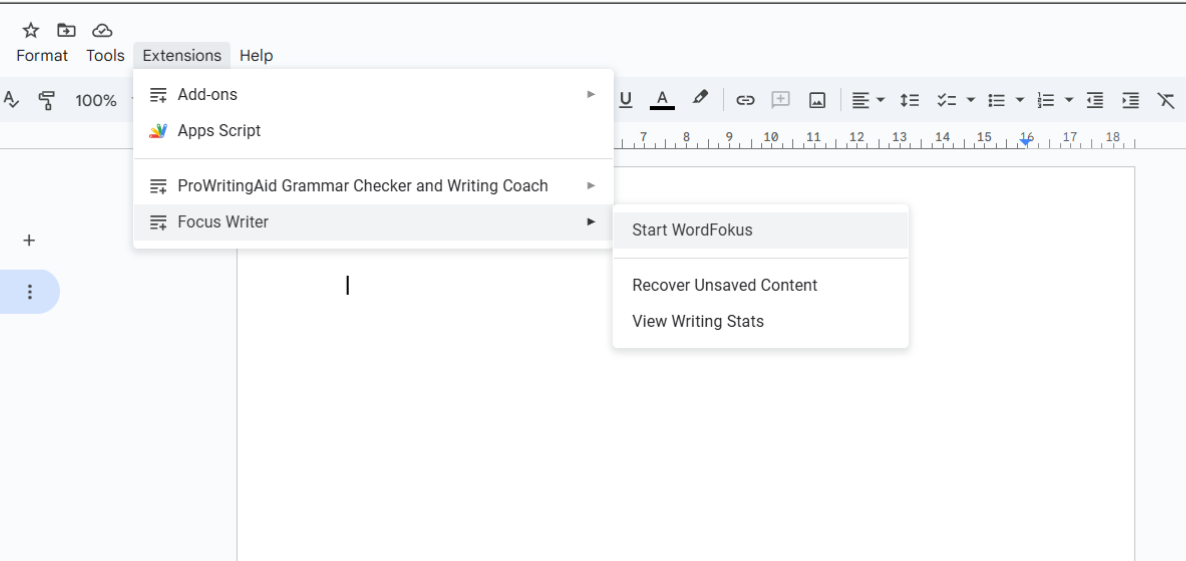
Click Extensions → WordFokus → Start WordFokus.
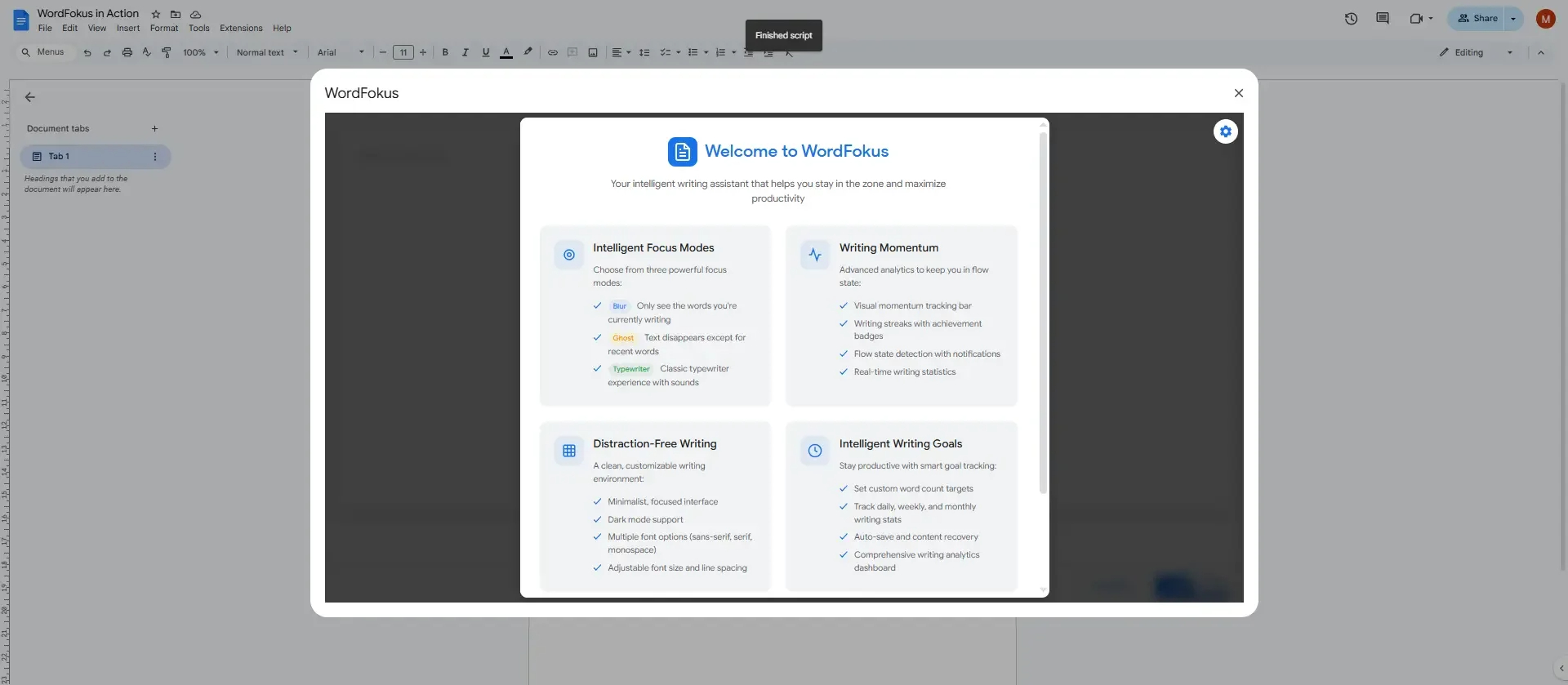
Welcome Screen (First Time Only)
You'll see a quick intro to the key features. Click "Start Writing Now" to dive in.
The Focus Environment
WordFokus opens a clean overlay. Start typing! Your chosen focus mode (Blur by default) will activate automatically.
3. Interface Overview
The WordFokus interface is minimal by design, keeping essential tools accessible without cluttering your writing space. The main UI includes a stats bar, quick access to mode-specific settings, and mode selection pills.
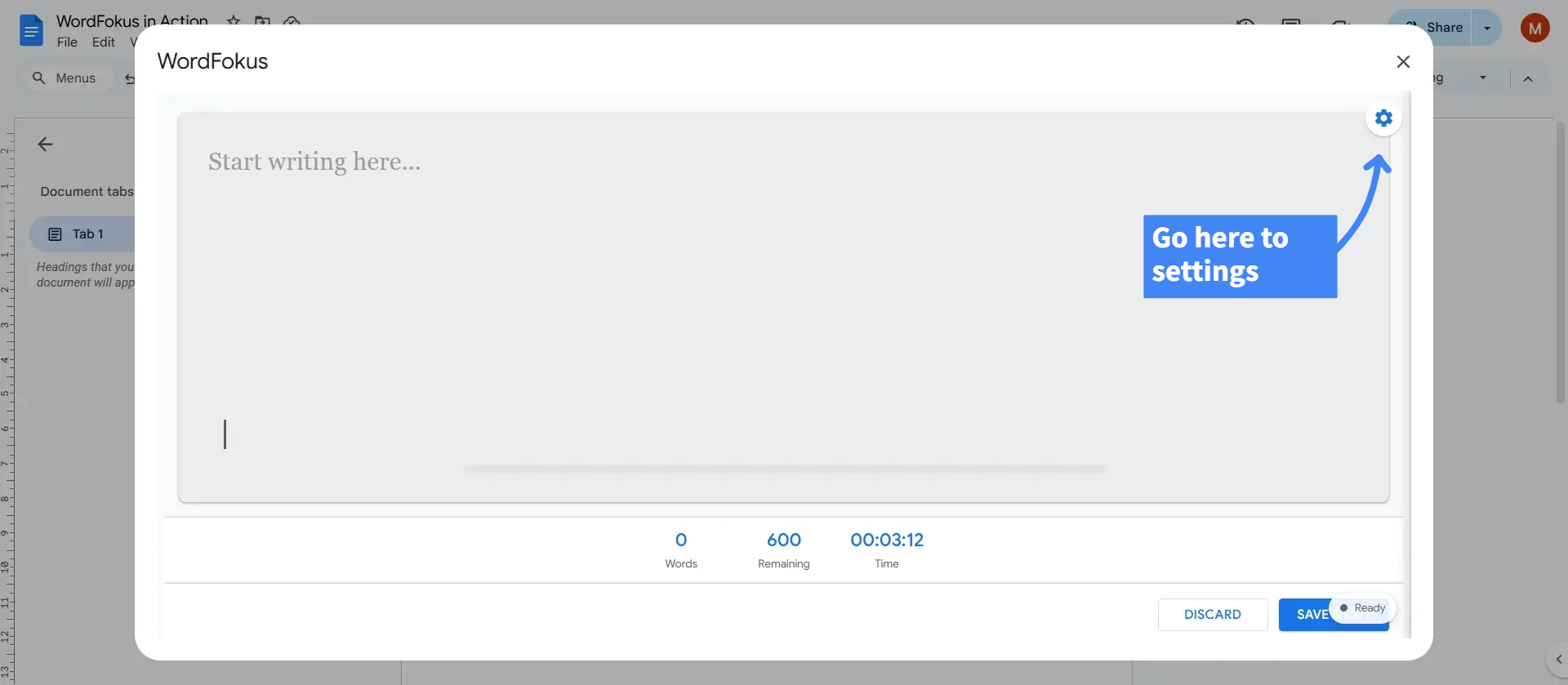
- Writing Area: Your canvas for focused writing.
- Stats Bar: Real-time word count, session time, and goal progress.
- Momentum Bar (PRO): Visualizes your writing rhythm and flow state.
- Settings (Gear Icon): Access full settings like appearance, goals, sounds, and feature toggles.
- Save/Discard: Exit focus mode and manage your text.
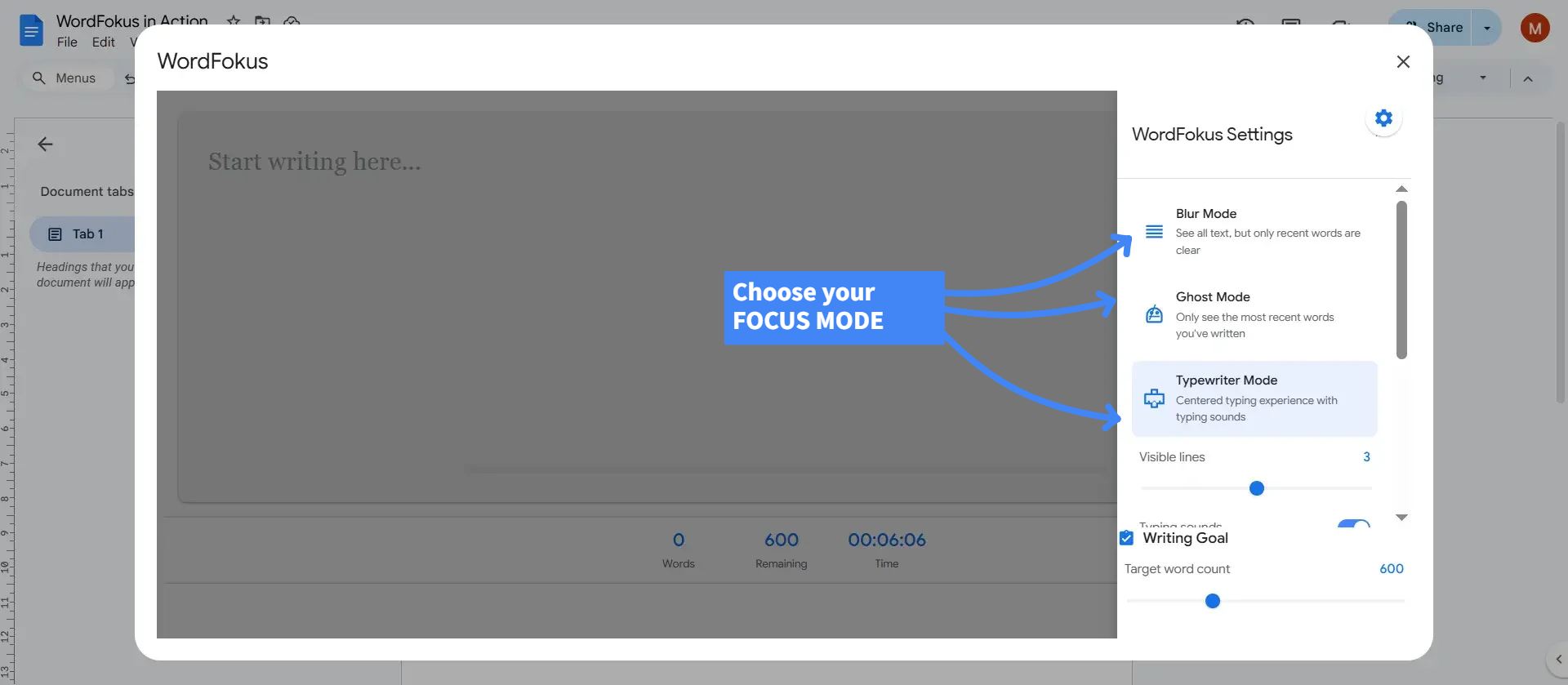
- Mode Selector Pills: Quickly switch between Blur, Ghost, and Typewriter modes at the bottom of the writing area.
- Contextual Controls: Sliders for "Visible Words" (Blur/Ghost modes) or "Visible Lines" (Typewriter mode) appear below the stats bar when the respective mode is active.
4. Quick Start: Write & Save
Write Freely
Type your thoughts without distraction. Let the focus mode keep you centered.
Adjust Settings (Optional)
Press Esc or click the Gear icon anytime to access the full settings panel. You can also adjust mode-specific settings (like visible words/lines) directly from the main UI if the relevant mode is active, or switch modes using the pills at the bottom.
Save & Exit
Click SAVE & EXIT. Your writing is instantly added to your Google Doc where your cursor was. If you choose DISCARD, you'll be asked to confirm before changes are lost.
Key Shortcut
Press Esc anytime while in WordFokus to quickly open or close the Settings panel.
Master Your Focus: Choosing the Right Mode
WordFokus offers unique modes to combat different types of distractions. You can easily switch between them using the mode selector pills at the bottom of the WordFokus overlay. Experiment to find which ones work best for your writing style and current task.
Blur Mode: Focus with Context
Problem Solved: Feeling distracted by earlier paragraphs but still need to see the context of your writing?
Blur Mode keeps your entire text available but gently blurs older content, keeping your eyes fixed on your current sentence or paragraph. It’s the perfect balance between focus and awareness.
Blur Mode keeps recent text sharp while gently blurring the past.
Best for:
- Drafting chapters or sections where context is important.
- Revising specific paragraphs without getting lost.
- Writers who find disappearing text unsettling.
Blur Mode Settings:
| Setting | Description | Tip |
|---|---|---|
| Visible Words | Adjust the slider to control how many recent words remain sharp. | Lower values (e.g., 5-10) increase focus; higher values (e.g., 20-50) keep more context visible. |
Quick Adjust: When Blur Mode is active, you can also adjust the "Visible Words" using the slider that appears directly below the stats bar in the main WordFokus UI.
Blur Mode Tips
- Sentence Focus: Set "Visible Words" to around 15-25 to keep the current sentence clear.
- Paragraph Focus: Use 50-70 "Visible Words" to keep the current paragraph sharp.
Ghost Mode (PRO): Silence Your Inner Editor
Problem Solved: Constantly stopping to edit and rephrase, killing your writing momentum?
Ghost Mode forces you forward by making your previously written text fade away, leaving only the last few words visible. It's a powerful tool to overcome writer's block and silence the urge for premature editing.
PRO Feature
Ghost Mode is part of the WordFokus PRO plan. Upgrade to unlock this powerful focus tool.
Unlock PRO Features →Write freely as older text vanishes in Ghost Mode.
Best for:
- Blazing through first drafts without self-critique.
- Brainstorming and freewriting exercises.
- Timed writing sprints (like Pomodoro work sessions).
- Breaking through writer's block by forcing forward motion.
Ghost Mode Settings:
| Setting | Description | Tip |
|---|---|---|
| Visible Words | Adjust the slider to control how many recent words remain visible before fading. | Start with 5-7 words. Lower values increase the pressure to keep writing. |
Quick Adjust: When Ghost Mode is active, you can also adjust the "Visible Words" using the slider that appears directly below the stats bar in the main WordFokus UI.
Ghost Mode Tips
- Trust the Process: Don't worry about the disappearing text – it's all saved! Focus on getting your ideas down.
- Combine with Pomodoro: Use Ghost Mode during your Pomodoro "Work" intervals for hyper-focused drafting bursts.
Typewriter Mode (PRO): Immersive, Centered Writing
Problem Solved: Feeling eye strain from scanning up and down the page during long writing sessions?
Typewriter Mode offers a classic, immersive experience by keeping your current writing line fixed vertically in the center of the screen. Reduce eye movement and settle into a comfortable, focused rhythm, enhanced by optional typewriter sounds.
PRO Feature
Typewriter Mode is part of the WordFokus PRO plan. Upgrade for this focused, classic writing experience.
Unlock PRO Features →Stay centered and focused with Typewriter Mode.
Best for:
- Long writing sessions where reducing eye strain is key.
- Writers who enjoy a minimalist, centered interface.
- Creating an immersive, almost meditative writing environment.
- Drafting linear narratives or code where focus on the current line is paramount.
Typewriter Mode Settings:
| Setting | Description | Tip |
|---|---|---|
| Visible Lines | Control how many lines of text are shown above and below the active centered line. | 1-2 lines offer maximum focus. 3-5 provide slightly more surrounding context. |
| Typing Sounds | Enable or disable the classic typewriter sound effects as you type. This can be toggled in the main Settings Panel under 'Focus Features'. | Sounds enhance immersion but can be disabled for quiet environments. |
Quick Adjust: When Typewriter Mode is active, you can also adjust the "Visible Lines" using the slider that appears directly below the stats bar in the main WordFokus UI.
Typewriter Mode Tips
- Embrace the Flow: Let the centered line guide your focus; resist the urge to scroll manually.
- Headphones Recommended: For the best sound experience without disturbing others, use headphones.
Boost Your Productivity: Tools & Insights
WordFokus goes beyond just hiding distractions. Use these features to understand your habits, stay motivated, and build a consistent writing routine.
Track Your Progress: Writing Stats & Streaks
Knowledge is power. Understand your writing habits with detailed statistics, visualize your consistency, and build momentum with streaks.
Access Your Dashboard
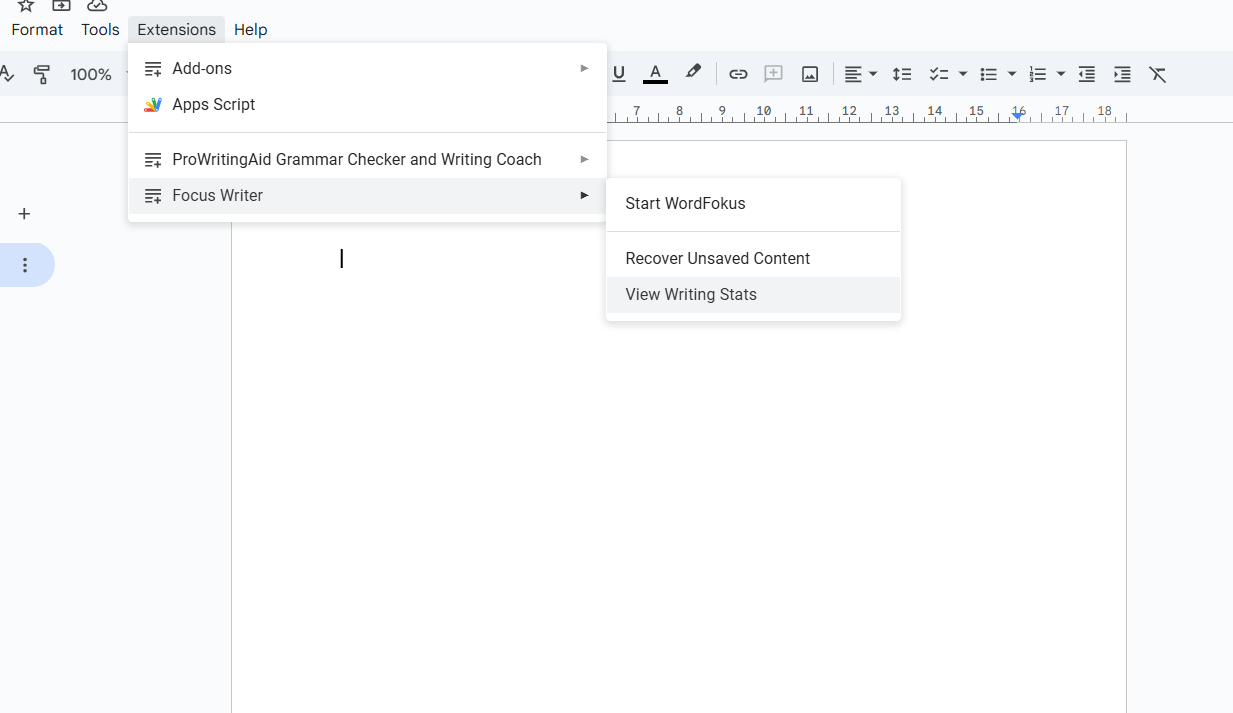
Click Extensions → WordFokus → View Writing Stats to open your personal dashboard in the sidebar.
Visualize Your Activity
Use the Activity Calendar (Month/Year views) to see your writing days at a glance. Darker squares indicate more words written.
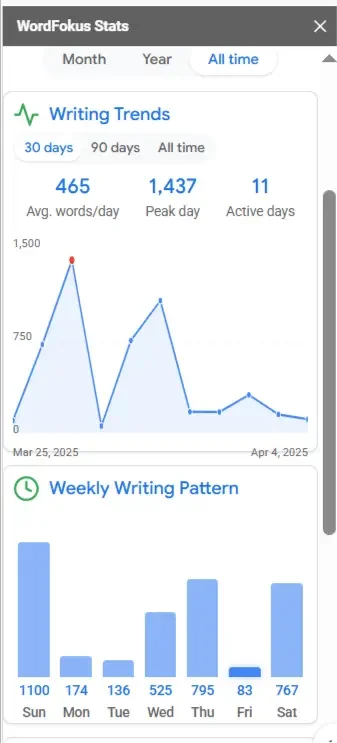
Analyze Trends & Patterns (PRO)
Switch to the Trends tab to see your word count over time (30 days, 90 days, all time) and discover your most productive days of the week.
Build Streaks
The dashboard highlights your Current Streak and Longest Streak of consecutive writing days. Aim to keep that fire going!
Using Your Stats
Review your stats weekly. Identify your peak writing times and days. Notice patterns: Do you write more on weekends? Shorter, frequent sessions or longer, less frequent ones? Use these insights to schedule your writing for maximum effectiveness.
Stay in Flow: The Momentum System (PRO)
Get real-time feedback on your writing rhythm. The Momentum Bar fills as you type consistently, encouraging you to maintain focus and enter a productive flow state.
You can toggle the visibility of the Momentum Bar from the Settings panel (Gear icon ) under 'Focus Features'.
PRO Feature
The Momentum System provides advanced real-time feedback and is part of WordFokus PRO.
Unlock PRO Features →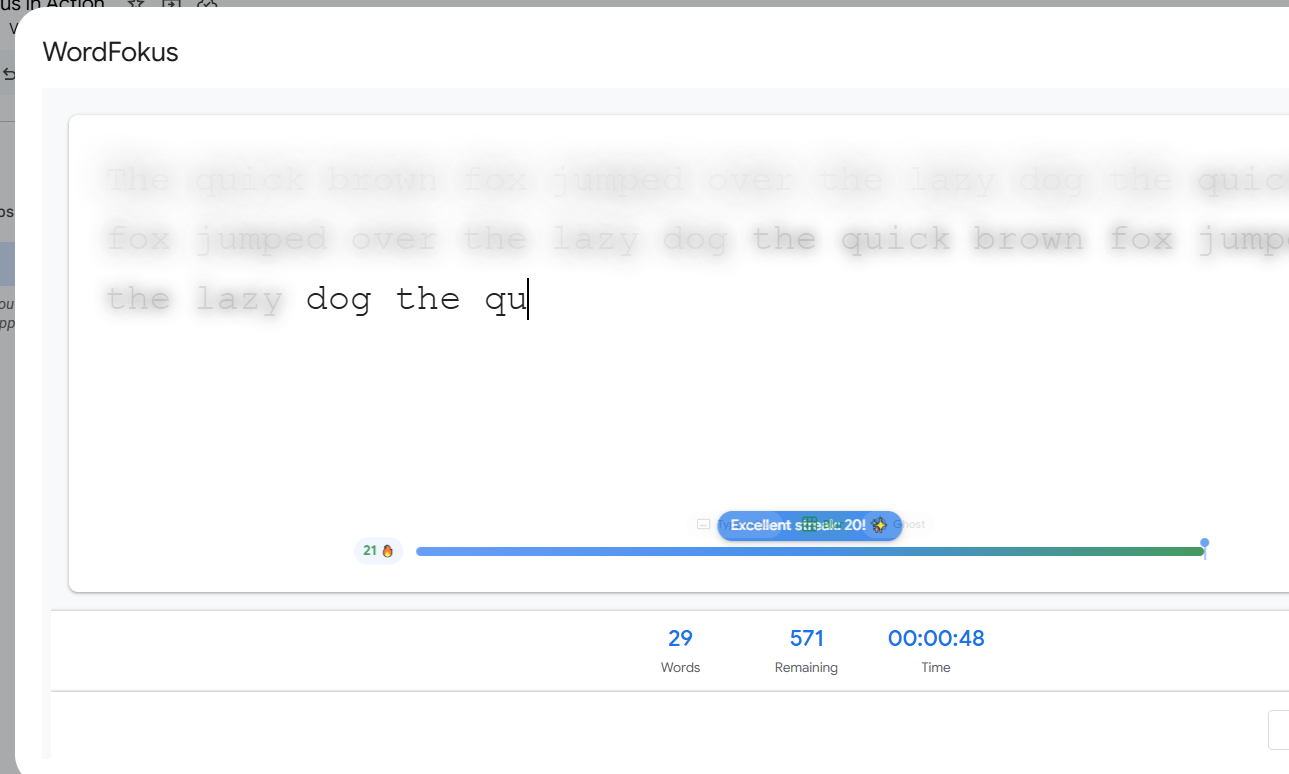
Build and maintain your writing rhythm with the Momentum Bar.
- Build Momentum: Write at a steady pace to fill the bar.
- Reach Flow State: High momentum triggers visual cues indicating peak focus.
- Maintain Streaks: Keep typing consistently to rack up momentum streaks (🔥).
- Milestones: Get encouraging messages as you hit momentum thresholds.
Rhythm over Speed
Focus on consistency, not just speed. Smooth, steady typing builds momentum more effectively than frantic bursts followed by long pauses.
Structure Your Time: Pomodoro Timer
Integrate the proven Pomodoro Technique directly into your writing sessions. Work in focused bursts, take scheduled breaks, and prevent burnout.
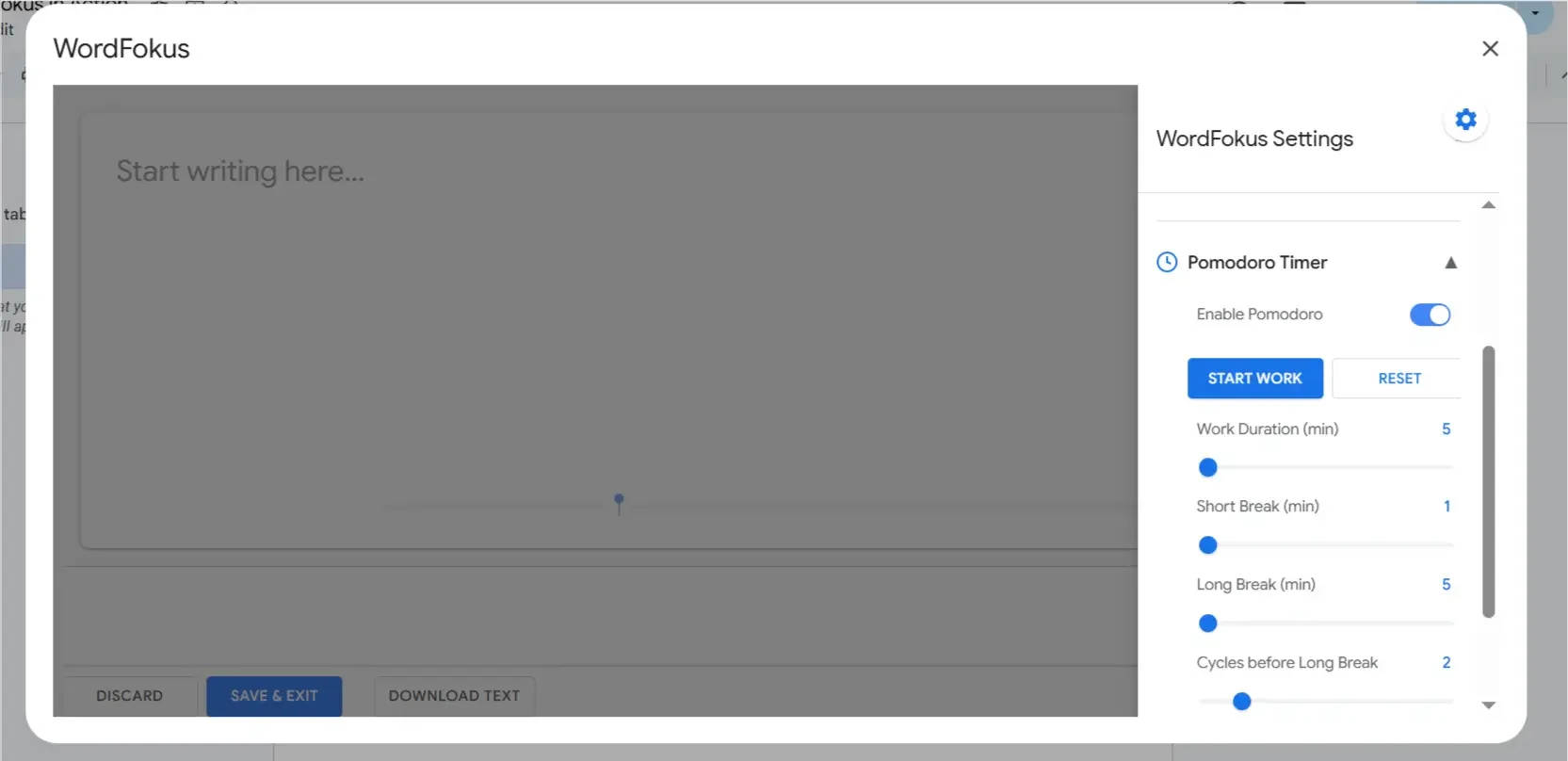
Configure work and break intervals in the Pomodoro settings.
- Enable/Disable: Easily toggle the Pomodoro timer on or off from the settings panel.
- Custom Intervals (PRO): Adjust the duration of work sessions, short breaks, and long breaks to fit your optimal rhythm.
- Cycle Tracking: WordFokus tracks your completed Pomodoro cycles.
- Sound Alerts: Optional sounds notify you when it's time to switch between work and break phases.
- Auto-Pause Timer: The main writing timer pauses automatically during break phases.
PRO Feature Customization
Customizing Pomodoro interval lengths (Work, Short Break, Long Break, Cycles) requires WordFokus PRO. The free version uses standard 25/5/15 intervals.
Unlock PRO Features →Respect the Breaks!
The key to Pomodoro is taking the scheduled breaks, even short ones. Step away, stretch, rest your eyes. This prevents fatigue and keeps you focused during work intervals. Typing during a break will reset the break timer!
Celebrate Your Wins: Achievements
Stay motivated by unlocking badges for your writing consistency and milestones. Track your progress and celebrate your dedication!
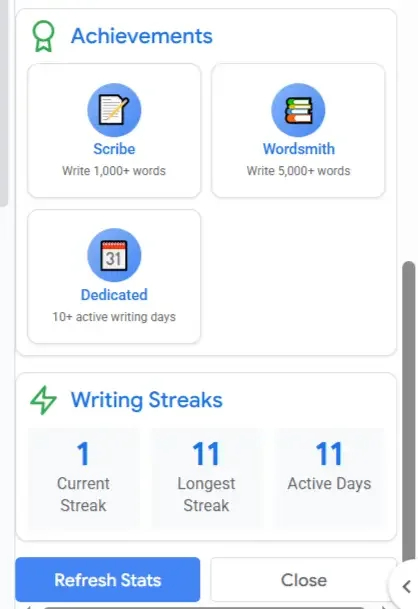
Earn badges for:
- Writing Streaks: Maintaining consecutive days of writing (3-day, 7-day, 30-day, etc.).
- Word Count Milestones: Reaching total word count goals (1k, 5k, 10k, 50k+ words).
- Active Days: Accumulating a significant number of writing days.
- (PRO) Flow State: Achieving and maintaining high momentum.
Find your earned badges in the "Summary" tab of the Writing Stats sidebar.
Never Lose Work: Autosave & Recovery
Write with confidence knowing WordFokus has your back.
- Automatic Saves: Your progress is saved automatically every few seconds while you type in focus mode. Look for the "Saved" status indicator.
- Session Recovery: If WordFokus closes unexpectedly (browser crash, accidental close), you'll be prompted to recover your last session's text upon relaunching the add-on.
- Manual Save: Always click SAVE & EXIT to ensure your final text is securely inserted into your Google Doc. If you click DISCARD with text present, you'll be asked to confirm.
Autosave Location
Autosaved content is stored securely within your browser's local storage for the current document session. It is *not* stored on external servers.
Tailor Your Writing Space: Customization
Make WordFokus truly yours by adjusting appearance, goals, and feature settings to match your preferences and workflow. Access these via the Settings panel (Gear icon or Esc key).
Appearance: Themes & Fonts
Create a visually comfortable writing environment.
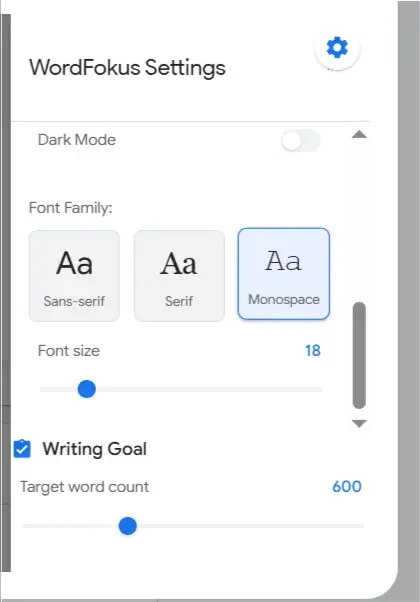
| Setting | Description | Availability |
|---|---|---|
| Dark Mode | Switch between light and dark themes to reduce eye strain. | PRO |
| Font Family | Choose Sans-serif (default), Serif, or Monospace. | Serif/Monospace are PRO |
| Font Size | Adjust the text size for optimal readability within the WordFokus overlay. | Free & PRO |
Set Your Target: Writing Goals
Define a word count target for your writing session to stay motivated and track your progress directly in the Stats Bar.
- Use the slider in the settings panel to set your target (0 means no target).
- The "Remaining" count in the Stats Bar shows how many words you have left.
- A notification appears when you reach your target.
Feature Settings
Customize how certain WordFokus features behave. Find these in the Settings panel (Gear icon or Esc key) under 'Focus Features' or 'Pomodoro Timer'.
- Momentum Bar Display (PRO): Toggle the visibility of the Momentum Bar. (Settings > Focus Features)
- Typewriter Sound Effects (PRO): Enable or disable keypress sounds when Typewriter Mode is active. (Settings > Focus Features)
- Pomodoro Sounds: Enable/disable sound alerts for Pomodoro phase transitions. (Settings > Pomodoro Timer)
Dark Mode (PRO)
Reduce eye strain during late-night writing sessions with Dark Mode. Toggle it on/off in the Appearance settings.
PRO Feature
Dark Mode provides a comfortable viewing experience in low-light conditions and is available with WordFokus PRO.
Unlock PRO Features →Font Selection
Choose the font that best suits your reading comfort and writing style. Select from:
- Sans-serif (Default): Clean and modern, great for general writing.
- Serif (PRO): Classic and traditional, often preferred for long-form reading.
- Monospace (PRO): Fixed-width, ideal for code snippets or a classic typewriter feel.
Change your font via the Appearance settings.
PRO Feature Fonts
Serif and Monospace font options are available with WordFokus PRO.
Unlock PRO Features →Help & Support
Need assistance? Find answers to common questions or reach out to our support team.
Troubleshooting Common Issues
This is a common issue for users with school (.edu) or work accounts! It doesn't mean WordFokus is broken. It means your organization's IT department has a policy that requires them to approve new third-party applications.
The good news is that it's usually a quick fix. You can send a request to your IT administrator. We've drafted an email template for you to make it easy—just copy, paste, and send it to your tech support department.
Email Template for Your IT Administrator
Subject: Request to Approve Google Docs Add-on: WordFokus
Hi [IT Department Name],
I would like to request approval to install a Google Docs Add-on called "WordFokus" from the official Google Workspace Marketplace.
This tool is a productivity aid for writing that helps minimize distractions directly within Google Docs, which would be very helpful for my work on [Mention a project, e.g., my dissertation, content reports, etc.].
It is highly rated and can be found on the Marketplace here:https://workspace.google.com/marketplace/app/wordfokus/297087799172
Could you please review and approve it for my account?
Thank you,
[Your Name]
Solution: Refresh your Google Docs page. If needed, go to Extensions > Add-ons > Manage add-ons, find WordFokus, and ensure it's enabled. Try updating or reinstalling if necessary.
Solution: Use the "Visible Words" slider in the main UI (appears when Ghost Mode is active) or press Esc to open Settings and increase "Visible Words" there. Remember, your text is always saved even if it disappears visually.
Solution: Check Settings panel under 'Focus Features' to ensure 'Typewriter Sound Effects' is enabled. Verify browser audio permissions for Google Docs. Ensure device volume is up. Click the page once before typing (some browsers require interaction).
Solution: Relaunch WordFokus. A recovery prompt should appear if possible. You can also try Extensions > WordFokus > Recover Unsaved Content. Always use "Save & Exit" for final saves.
Solution: Close unnecessary browser tabs/apps. Try a less resource-intensive focus mode (Blur or Ghost). Disable typewriter sounds. If working on huge documents, consider breaking them down.
Solution: The contextual sliders for "Visible Words" (Blur/Ghost modes) or "Visible Lines" (Typewriter mode) only appear in the main UI when the respective focus mode is active. Ensure you've selected the desired mode using the pills at the bottom of the writing area or from the Settings panel.
Solution: If you have typed text in the WordFokus overlay, clicking "DISCARD" will now show a confirmation dialog. You must confirm that you want to discard your changes. If there is no text, it will discard immediately.
Frequently Asked Questions
Yes! WordFokus offers a free tier with core features like Blur Mode, basic stats, and the Pomodoro timer (standard intervals). A PRO subscription unlocks Ghost Mode, Typewriter Mode, advanced stats & insights, momentum tracking, dark mode, font options, and customizable Pomodoro settings.
Absolutely. Your document content never leaves Google Docs and is never stored on our servers. Statistics and preferences are stored securely within your Google account's user properties, linked only to your account ID for functionality.
WordFokus requires an internet connection and is optimized for desktop browsers within Google Docs. Mobile support for Google Docs add-ons is currently limited by Google Workspace itself.
WordFokus integrates *directly* into Google Docs, eliminating the need to copy/paste or use separate apps. Its unique focus modes (like Blur and Ghost) offer specific solutions to common writing challenges within the Docs environment, complemented by integrated stats, goals, and motivation tools.
Need More Help?
If you can't find an answer here or in the FAQ, please reach out:
Feedback & Suggestions
Have an idea to make WordFokus better? We'd love to hear it! Use the Support Page to share your feedback.